
Runs
View execution history and resultsEdit
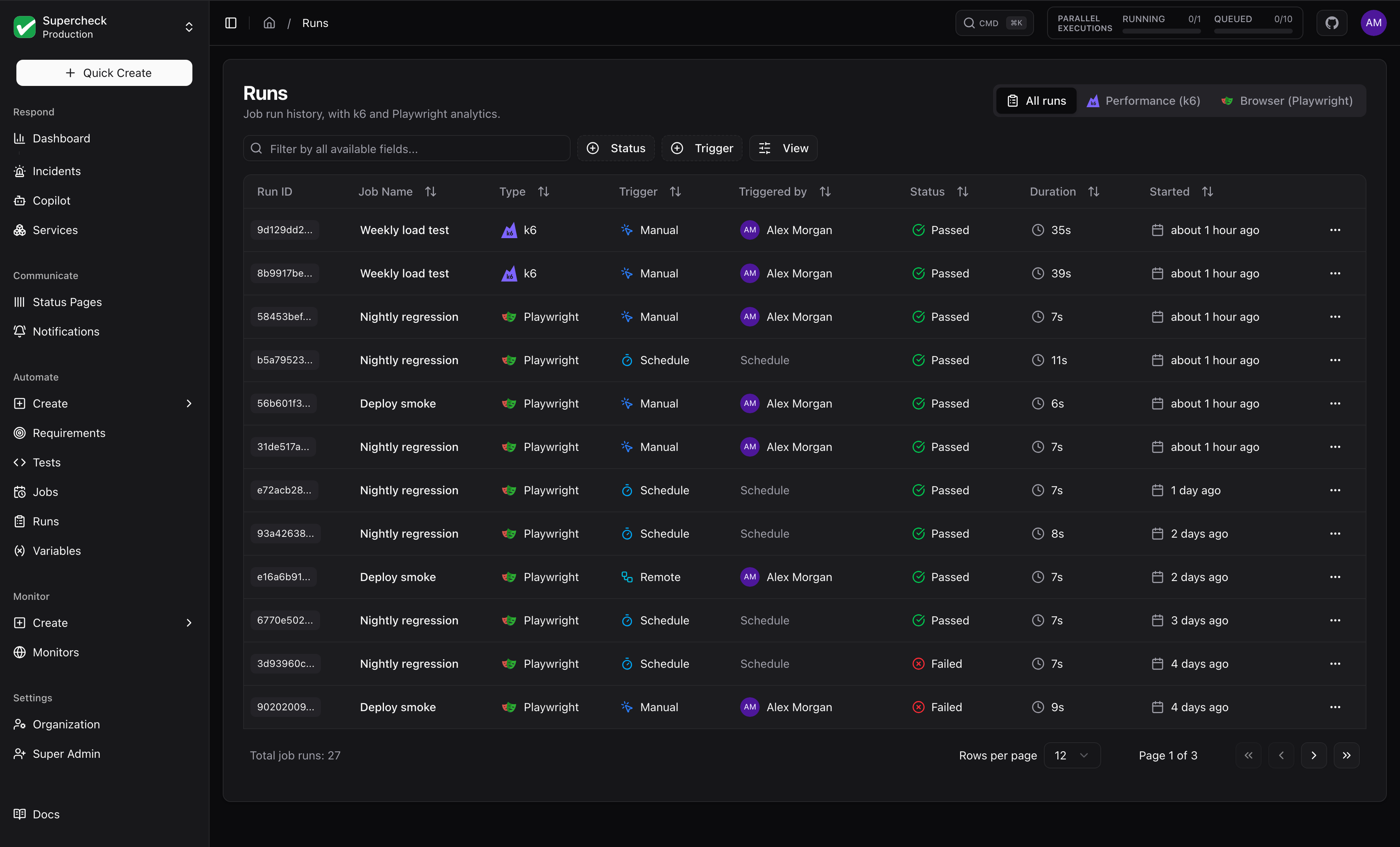
Every test or job execution creates a run with results, logs, and artifacts.
Run Status
| Status | Description |
|---|---|
| Passed | All tests completed successfully |
| Failed | One or more tests failed |
| Error | Execution error (timeout, crash, infrastructure) |
| Cancelled | Stopped by a user before it finished (stored as an error run, shown as Cancelled) |
| Running | Currently executing |
| Queued | Waiting to execute |
| Blocked | Execution denied by access or spending controls |
View Runs
Open Automate → Runs and select a run to view its details. The list shows the newest 1000 runs; older runs are not loaded and search and filters only cover the loaded ones.
The Triggered by column shows who started each run:
| Trigger | Shows |
|---|---|
| Manual or CLI | The user |
| Trigger key | The key name and the key owner |
| Schedule | The schedule in plain words, for example Every 4 hours or Daily at 09:00. Hover to see the cron (UTC). Uncommon schedules show the cron itself |
Runs recorded before this column was added show Unknown.
Tests, jobs, monitors, requirements, variables and notification channels show a Created by column. On the jobs and monitors tables it is hidden by default; turn it on from the column menu.
When cancellation is requested for a running execution, the run ends as Cancelled, with cancellation details on the run page.
Run Details
Each run includes:
- Results — Pass/fail count and duration
- Screenshots — Available screenshots from browser checks
- Videos — Browser test recordings
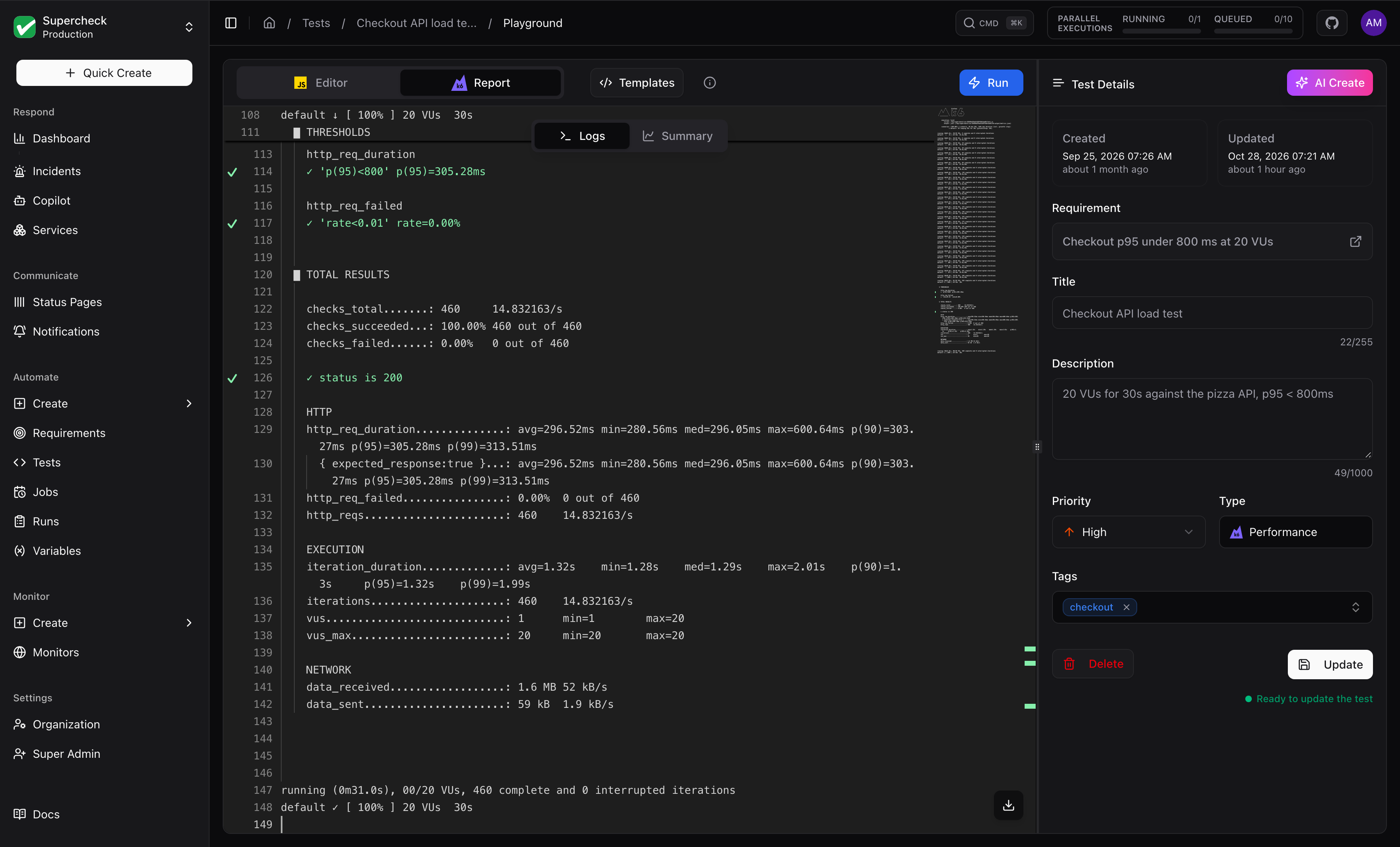
- Logs — Console output and live streaming logs
- Trace — Step-by-step execution replay
Debug Failures
Open failed run
Check error message
View screenshot at failure point
Review console logs
Check network requests
AI Analyze
Click AI Analyze on any job run to generate an AI-powered analysis report.
You need permission to edit the job or test (as for AI Fix); viewers cannot run it.
What AI Analyze Provides:
- Execution Summary — Overview of what happened during the run
- Failure Analysis — Suggested causes supported by the available run data
- Performance Insights — Duration analysis and optimization suggestions
- Recommendations — Actionable next steps based on actual run data
Supported Job Types:
- Playwright — Analyzes test failures with HTML report context
- K6 — Analyzes performance metrics and threshold breaches
Self-hosted: an administrator must configure an AI provider first.
Analytics
Open Automate → Runs and use the tabs at the top: All runs, Performance (k6), and Browser (Playwright). The selected view is kept in the URL (/runs?view=k6 or /runs?view=playwright), so you can bookmark or share it.
Switching projects resets analytics filters, job selection, and any open comparison. Each view loads jobs from the newly selected project.