
Organization Admin
Manage organization members, projects, and settingsEdit
Manage your organization's projects, members, CLI tokens, AI SRE setup, and audit trails from the Admin panel.
Projects
Manage all projects within your organization. Create, edit, or archive projects as needed.
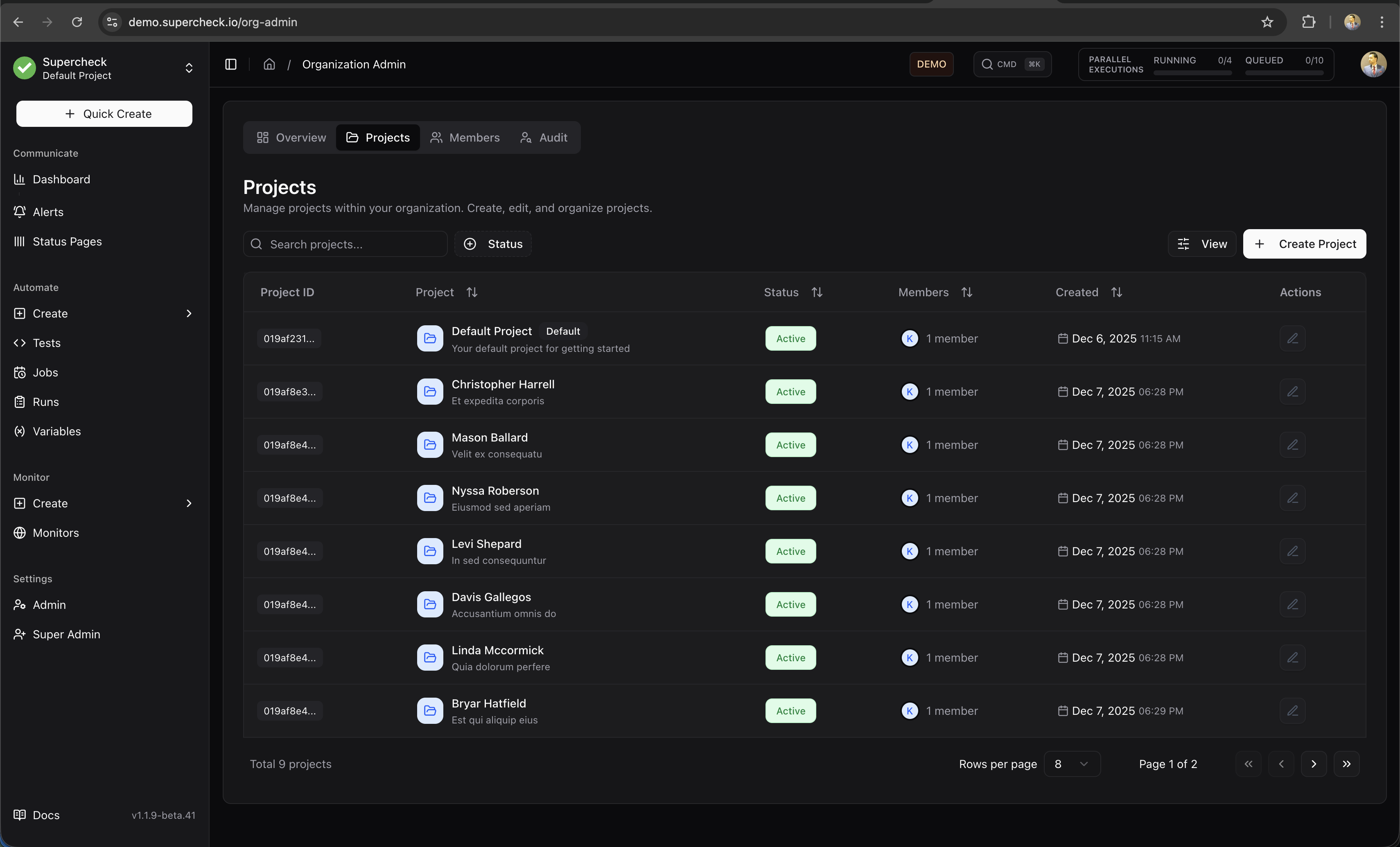
Create Project
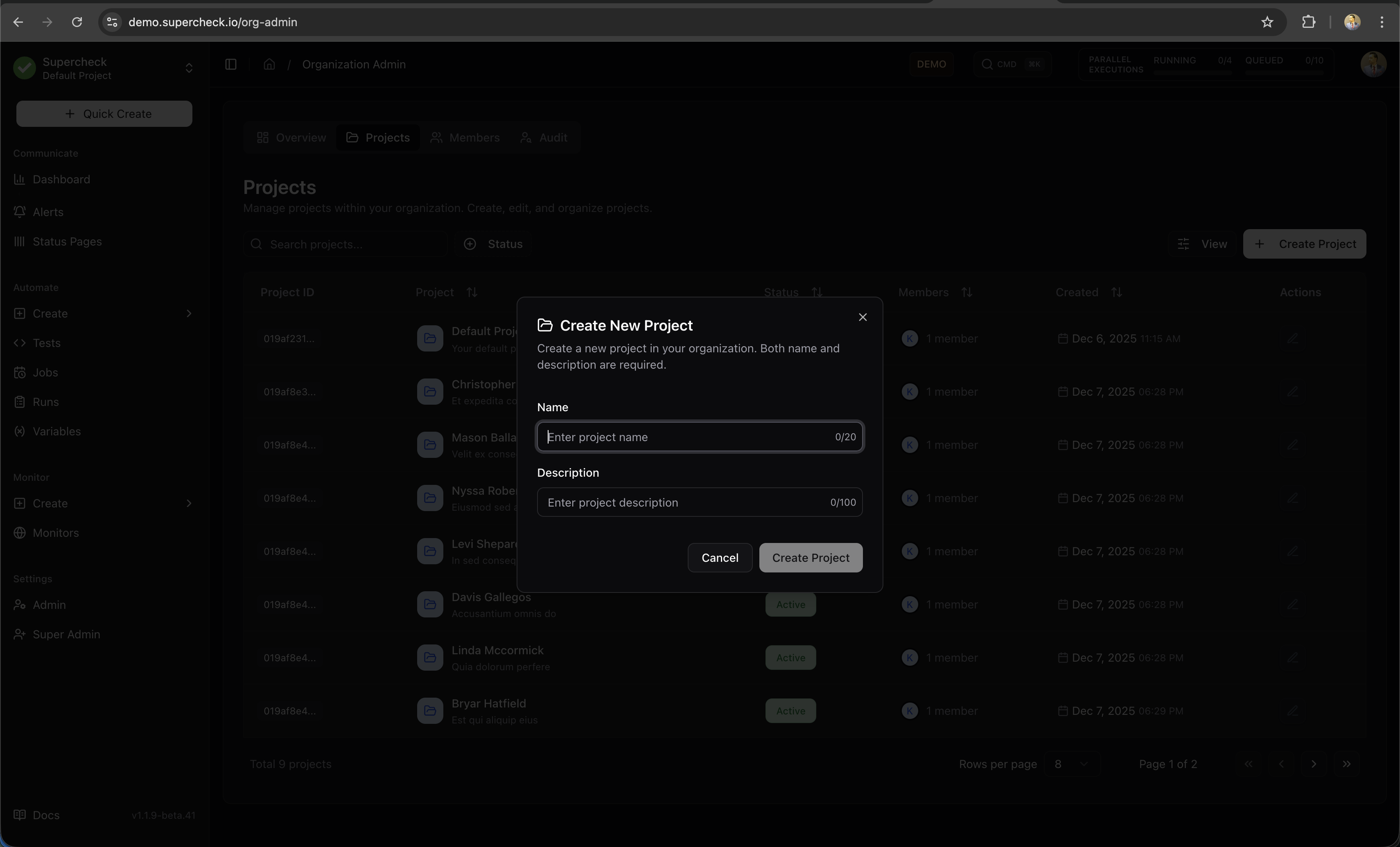
Create a new project to organize your tests, jobs, and monitors.
- Go to Admin → Projects
- Click Create Project
- Enter project name and description
- Configure project settings
- Save
Members
Invite and manage team members with role-based access control.
- Go to Admin → Members
- Click Invite Member
- Enter email and select role
- Send invitation
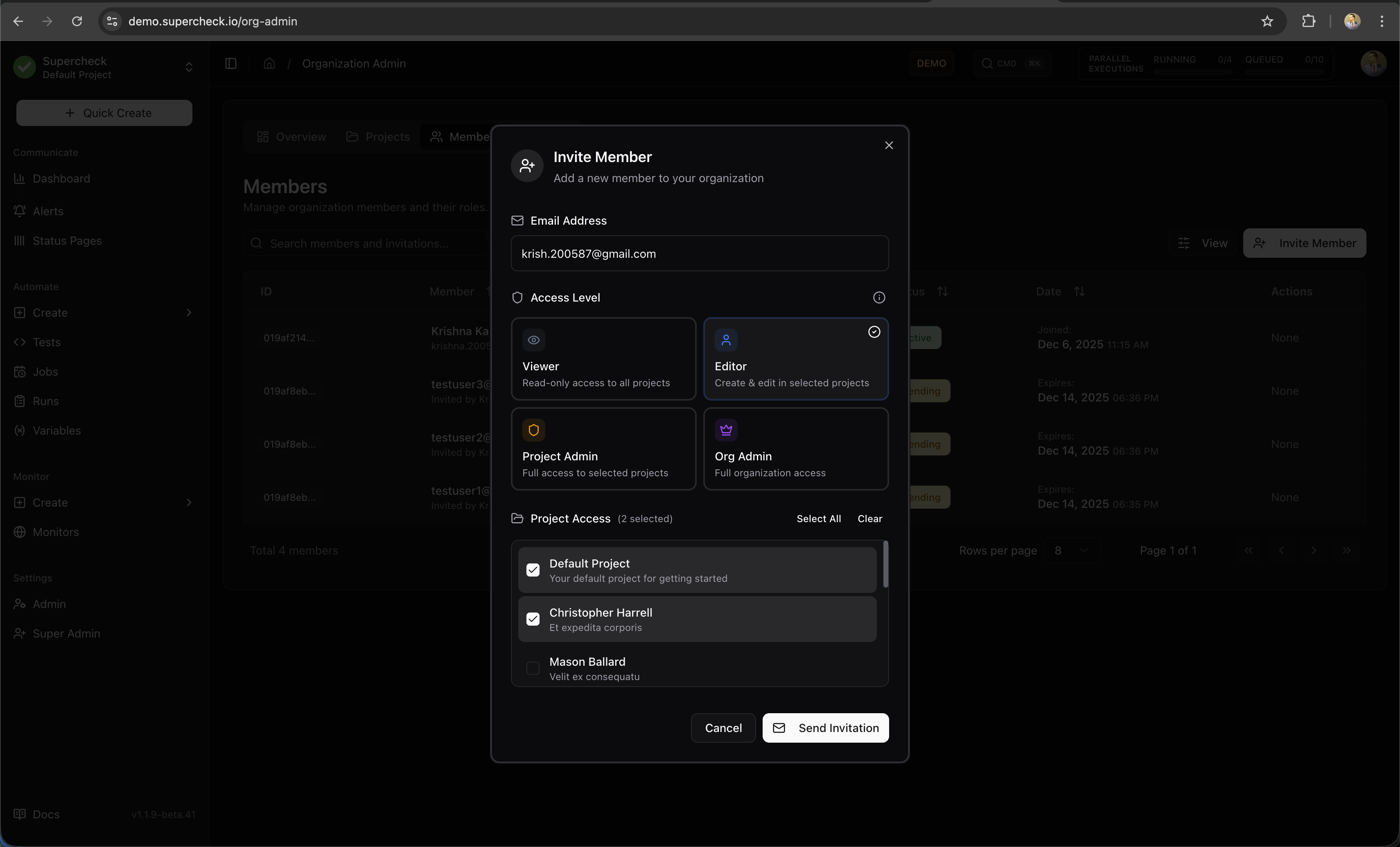
The invited member receives an email with a link to join your organization.
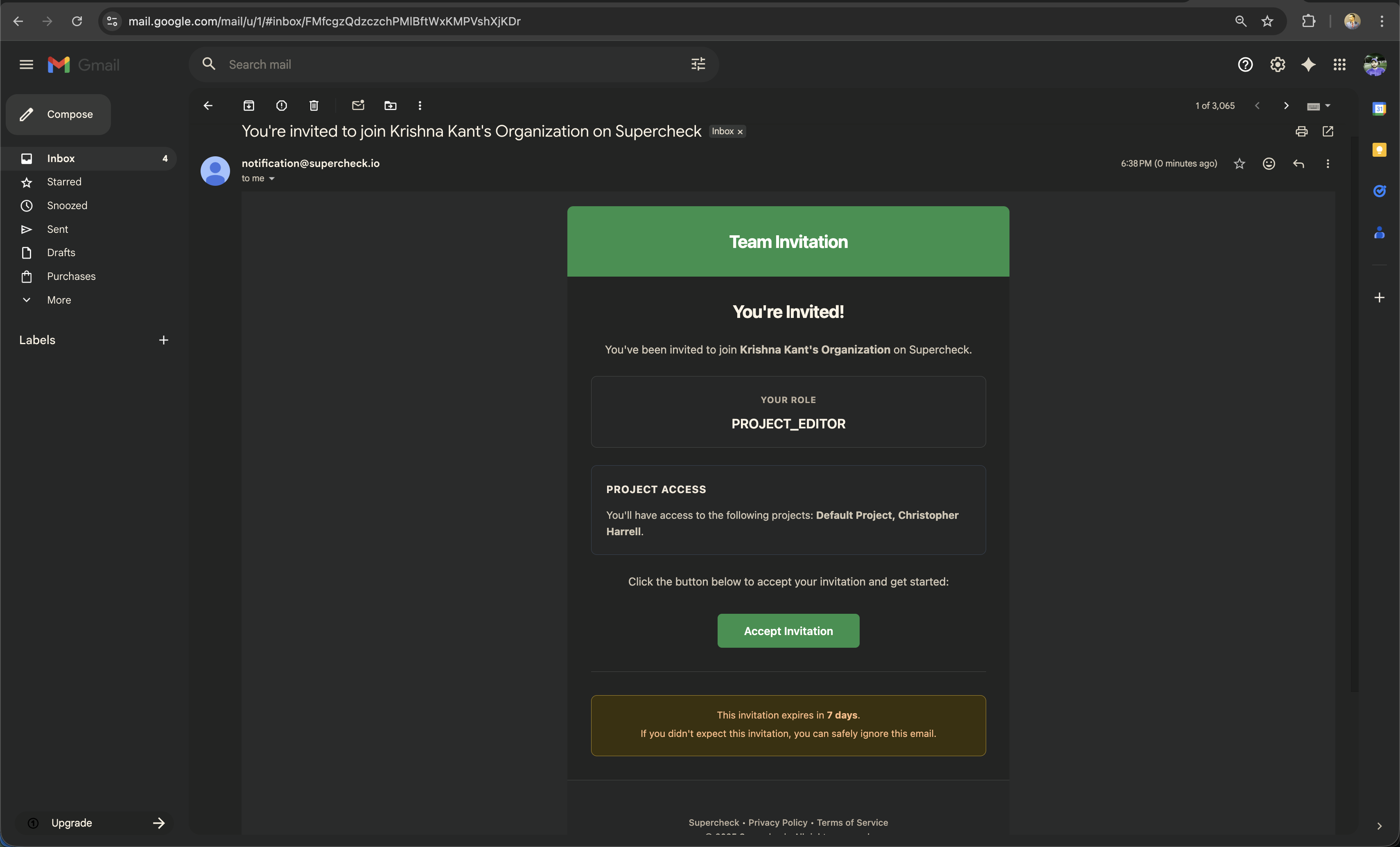
New members accept the invitation to join the organization.
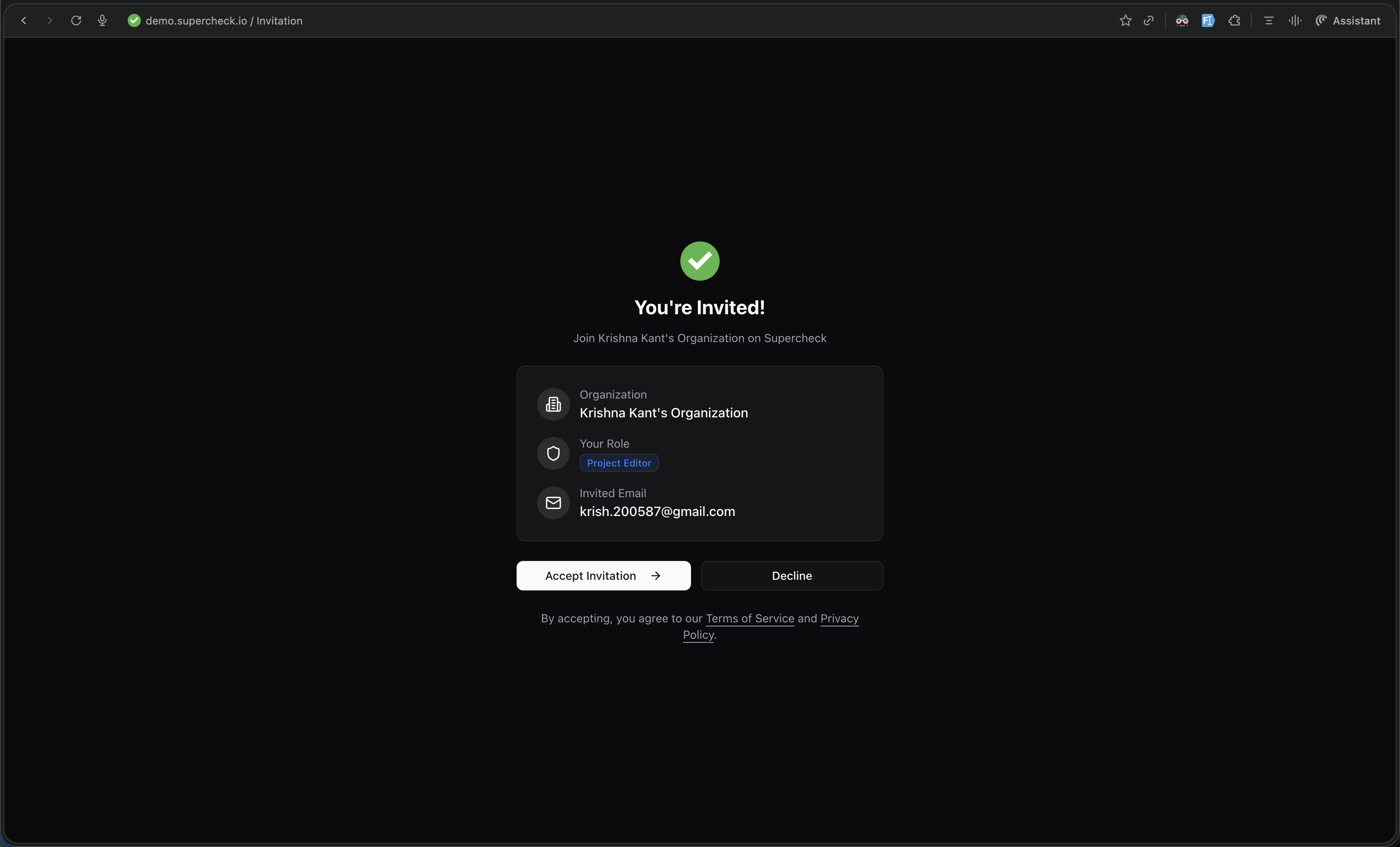
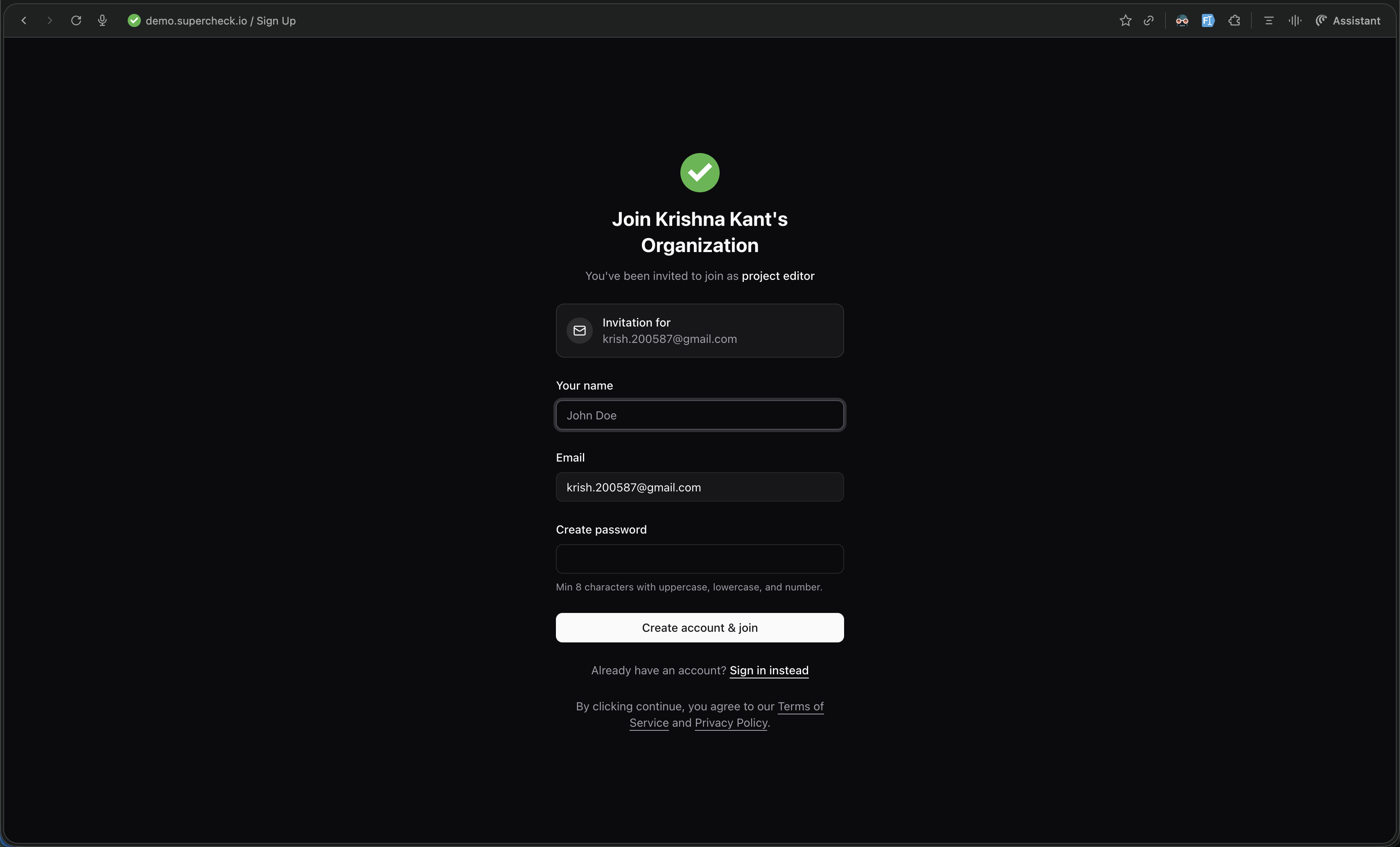
After accepting the invitation, new members can sign up or sign in to join the organization.
Roles
The system uses a 6-role RBAC system with specialized roles for organization and project management.
| Role | Permissions |
|---|---|
| Super Admin | System-wide control, user management, and full access to everything. |
| Org Owner | Full organization control, including deletion and member management. |
| Org Admin | Managing members and organization settings (cannot delete org). |
| Role | Permissions |
|---|---|
| Project Admin | Full control of assigned projects (create/edit/delete resources). |
| Project Editor | Create and edit resources in assigned projects (cannot delete). |
| Project Viewer | Read-only access to all projects in the organization. |
CLI Tokens
Manage organization-wide and project-scoped CLI tokens for API access and automation. Tokens created here can be used in your CI/CD pipelines and external integrations.
- Go to Admin → CLI Tokens
- Click Create Token
- Select the target project and assign an expiry date
- Copy the generated token securely
AI SRE Setup
Administrators configure project-level AI SRE setup from Admin so responders do not need to manage setup screens during an incident.
The setup tabs are:
- Services — Open the top-level Services page to register production services and ownership metadata used to map alerts, incidents, and connector evidence.
- Integrations — Configure read-only evidence connectors and link alert notification providers to connector context.
- Diagnostic Recipes — Save bounded, allowlisted read-only query recipes for common incident questions.
- Private Agents — Register outbound-only workers for querying private network tools without opening inbound access.
See AI SRE setup for the full setup flow.
Audit Log
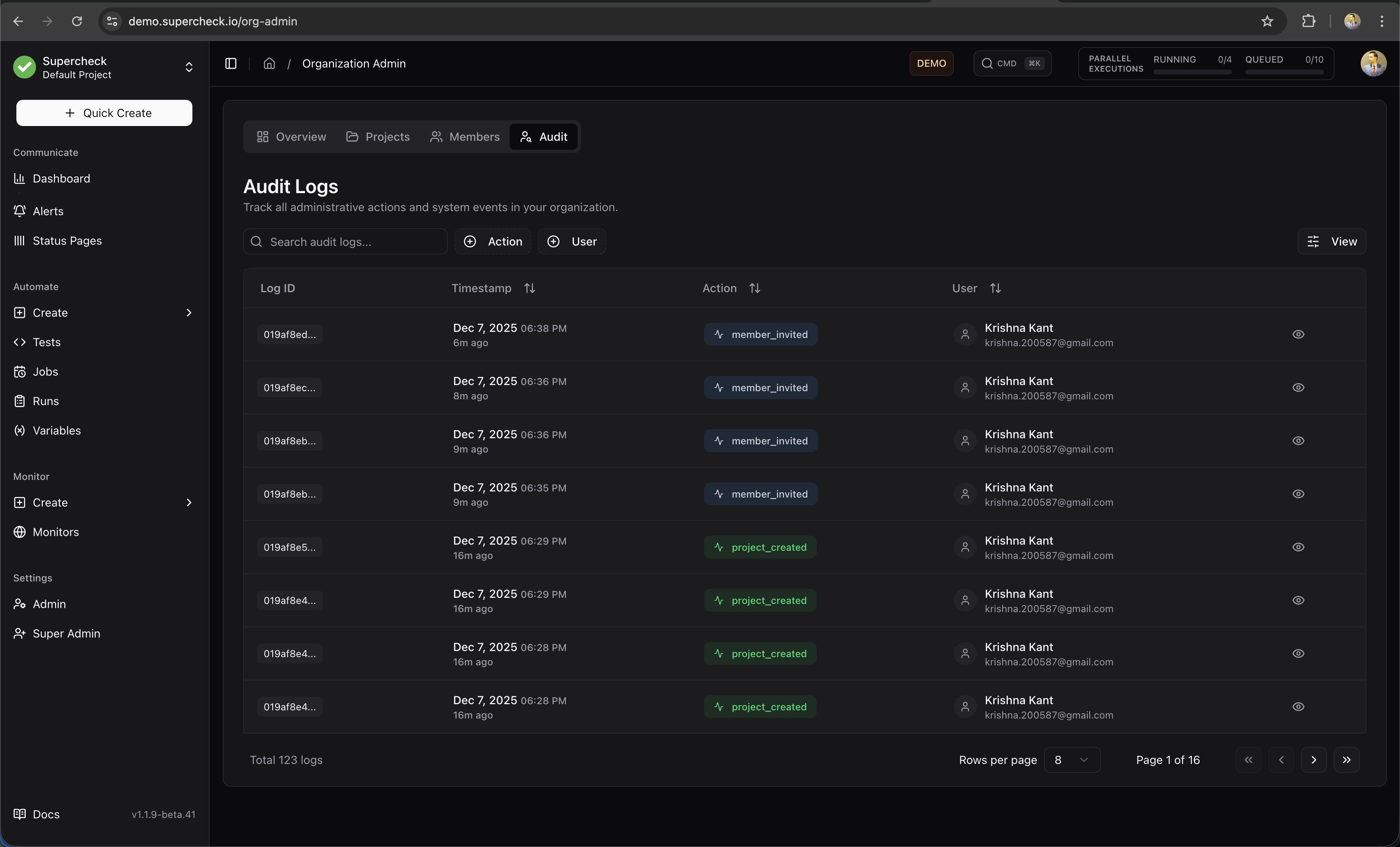
Track all actions performed within your organization. View who did what and when for compliance and security monitoring.
Event Categories
The audit log captures events across these categories:
- Authentication — Login, logout, password resets
- Authorization — Role changes, permission grants
- Resource Management — Test creation, monitor updates, job deletions
- Execution — Manual test runs, job triggers
- Configuration — Settings changes, integration updates
- Security — Failed logins, unauthorized access attempts