Alerts
Multi-channel notifications for failures and recoveriesEdit
Alerts notify you when monitors fail, tests break, or services recover. Configure multiple notification channels and use smart thresholds to avoid alert fatigue.
Notification Providers
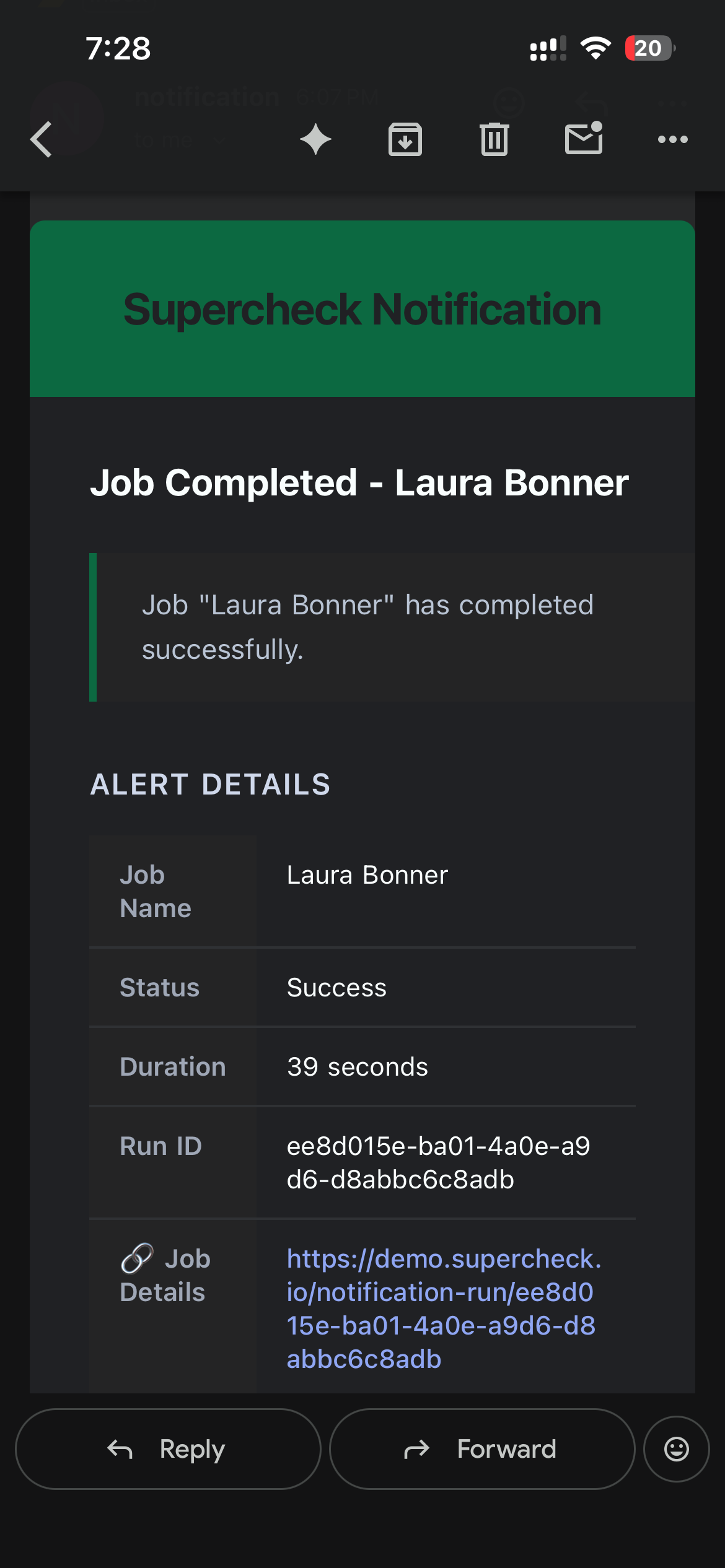
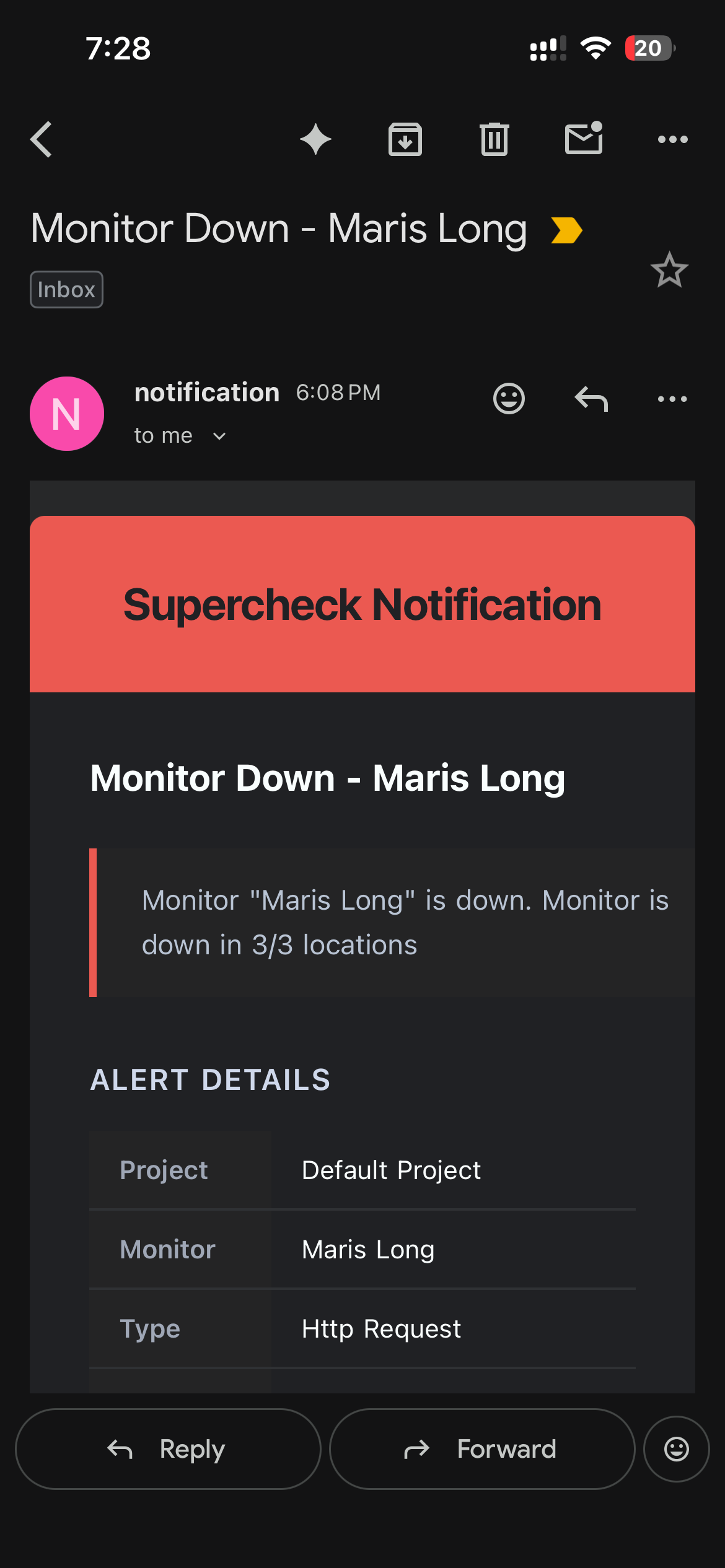
Professional HTML emails via SMTP with detailed status information
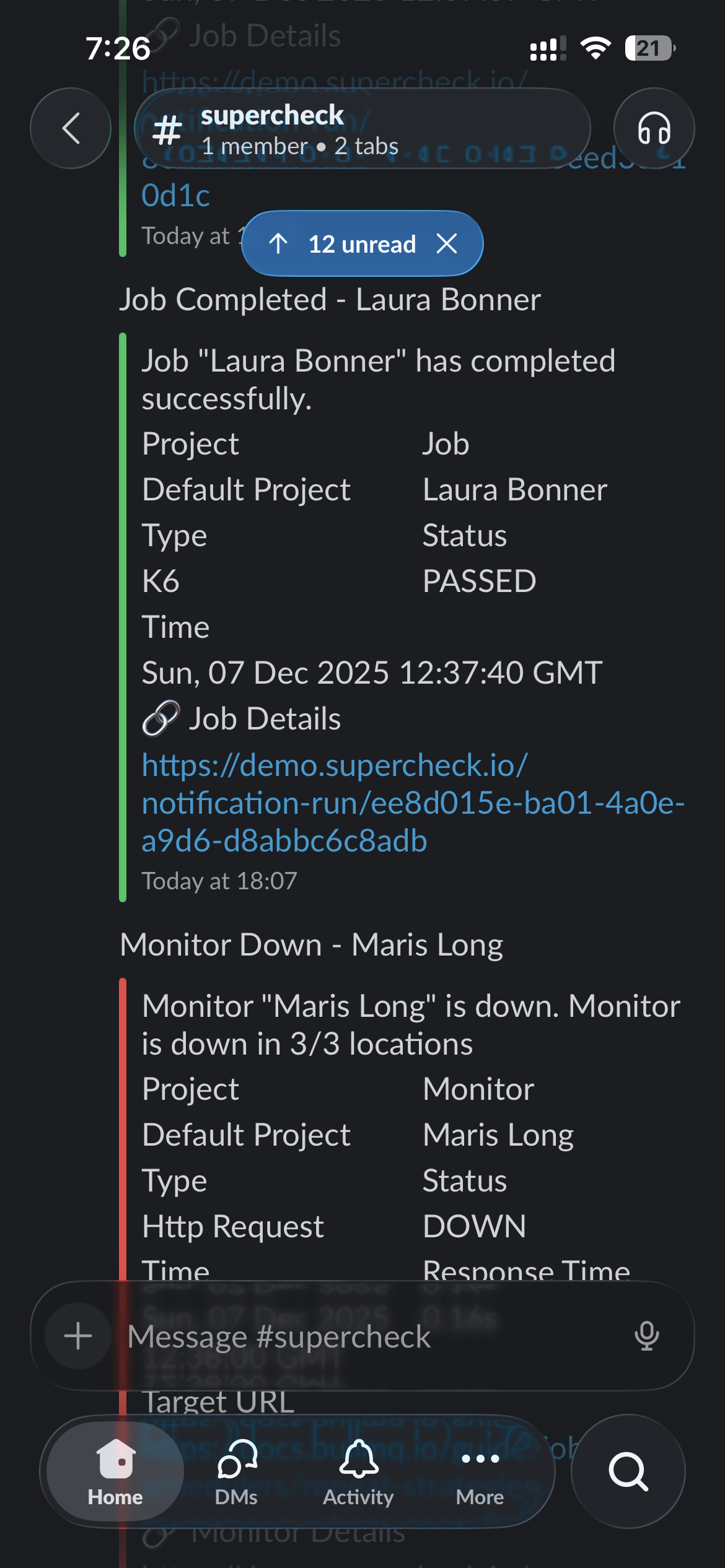
Slack
Rich formatted messages to channels or DMs with status badges
Webhook
JSON payloads to any HTTP endpoint for custom integrations
Telegram
Bot messages to chats or groups with Markdown formatting
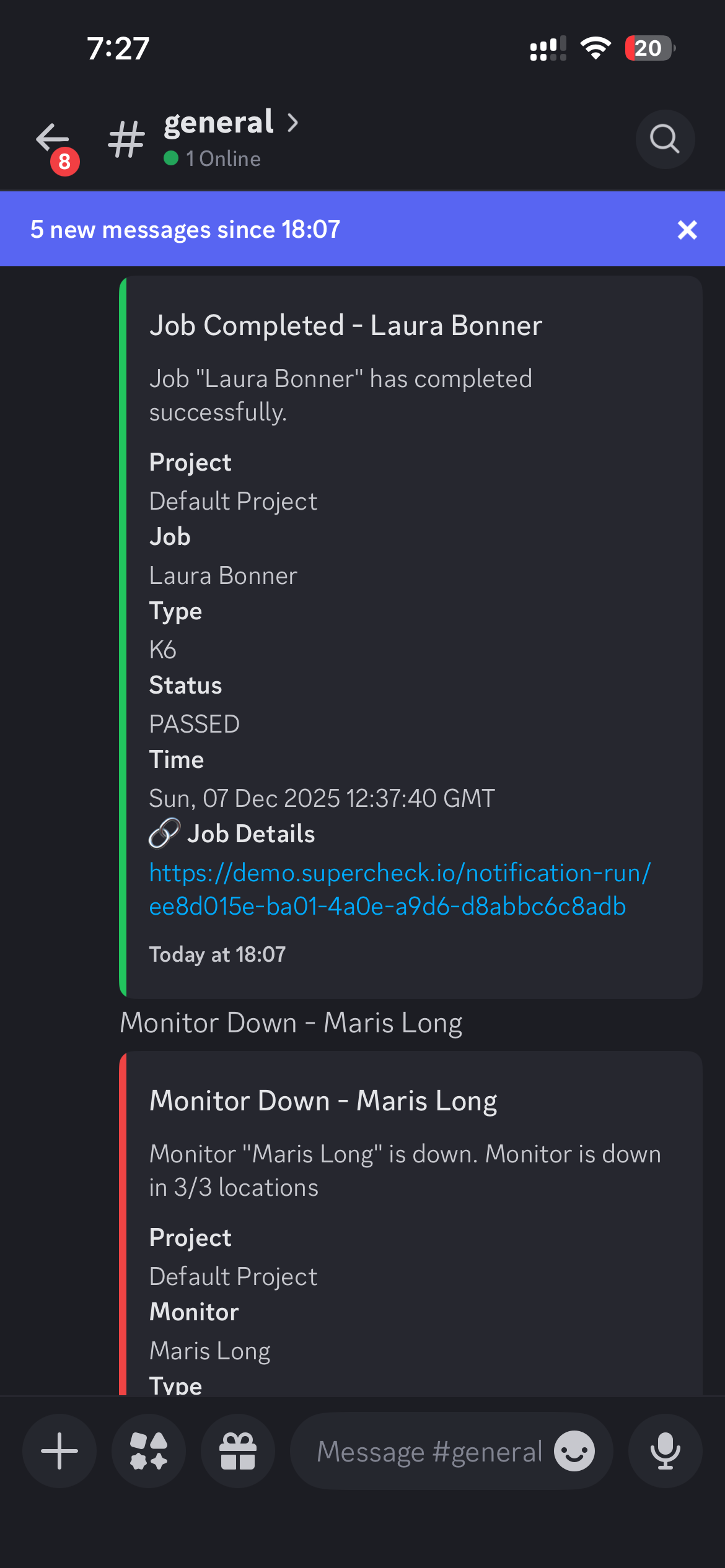
Discord
Embedded messages to server channels with color-coded status
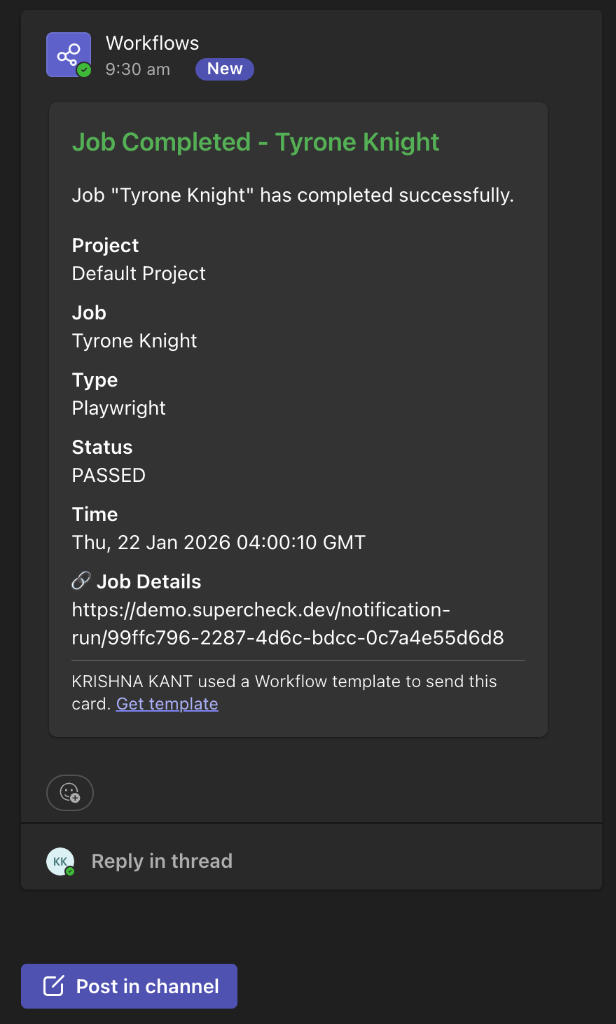
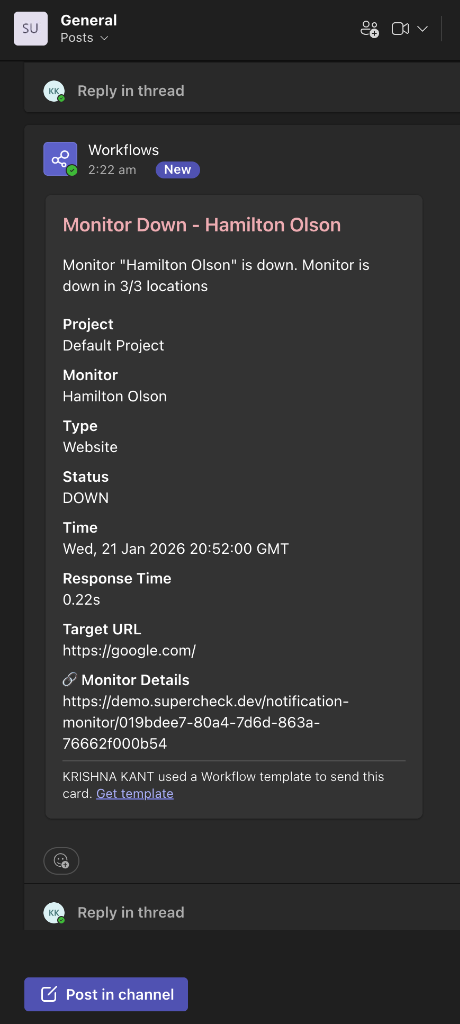
Teams
Adaptive Card notifications via Power Automate workflows
Setting Up Providers
- Go to Alerts → Channels
- Click Add Channel
- Select the provider type and enter credentials
- Click Test Connection to verify the connection
- Save the provider
After creating providers, attach them to monitors or jobs in their Alerts settings.
Alert Types
| Alert | Trigger | Severity |
|---|---|---|
| Failure | Consecutive failures reach threshold | Error |
| Recovery | Consecutive successes reach threshold after being down | Success |
| SSL Expiring | Certificate expires within configured days | Warning |
| Alert | Trigger | Severity |
|---|---|---|
| Failure | One or more tests in the job failed | Error |
| Success | All tests passed (optional) | Success |
| Timeout | Job exceeded maximum execution time | Warning |
Threshold Configuration
Thresholds prevent alert noise from transient issues like network blips or brief service hiccups.
Failure Threshold
The number of consecutive failures required before sending the first failure alert. This prevents alerts from single network blips.
Recovery Threshold
The number of consecutive successes required before sending a recovery alert. This ensures the service is truly stable before confirming recovery.
Alert Limiting
To prevent notification spam during extended outages:
- Maximum 3 alerts per failure or recovery sequence
- First alert sent when threshold is reached
- Counter resets when status changes (from up→down or down→up)
Configuration: Failure Threshold = 3, Recovery Threshold = 2
| Check | Result | Consecutive Count | Alert Sent |
|---|---|---|---|
| 1 | ❌ Fail | 1 failure | — |
| 2 | ❌ Fail | 2 failures | — |
| 3 | ❌ Fail | 3 failures ✓ | Failure Alert |
| 4 | ❌ Fail | 4 failures | — |
| 5 | ✅ Pass | 1 success | — |
| 6 | ✅ Pass | 2 successes ✓ | Recovery Alert |
Notes:
- Check 3: Failure threshold (3) reached → first failure alert sent
- Check 4: Already alerted, no new alert until exponential interval
- Check 5: Status changed to passing, failure counter resets, recovery counter starts
- Check 6: Recovery threshold (2) reached → recovery alert sent
Provider Configuration
SMTP environment variables:
SMTP_HOST=smtp.resend.com
SMTP_PORT=587
SMTP_FROM_EMAIL=alerts@yourdomain.com

# Optional: set BOTH only when SMTP authentication is required
SMTP_USER=resend
SMTP_PASSWORD=your-api-key
If your SMTP server does not require auth, leave SMTP_USER and SMTP_PASSWORD empty,
but keep SMTP_FROM_EMAIL set.
Supported providers: Resend, SendGrid, Mailgun, Amazon SES, Gmail, Office 365
- Go to Slack API and create an Incoming Webhook
- Select the channel to post to
- Copy the webhook URL
- Add the URL in Supercheck
Example: https://hooks.slack.com/services/T00000000/B00000000/XXXX
- In Discord, go to Server Settings → Integrations → Webhooks
- Create a new webhook and select the channel
- Copy the webhook URL
- Add the URL in Supercheck
Example: https://discord.com/api/webhooks/000000000000000000/XXXX
- Create a bot with @BotFather
- Get your bot token
- Get your chat ID (use @userinfobot)
- Add both in Supercheck
Teams uses Power Automate Workflows to receive webhook notifications.
- Go to the Teams channel where you want notifications
- Click ••• → Workflows → Create a workflow
- Choose a template:
- Send webhook alerts to a channel — posts to a Teams channel
- Follow the prompts to select the destination channel
- Copy the generated webhook URL
- Add the URL in Supercheck Notification Channel
Example: https://prod-00.westus.environment.api.powerplatform.com:443/powerautomate/...
Configuration:
- URL: Your endpoint
- Method: GET, POST, or PUT (default: POST)
- Headers JSON: Optional string-valued headers for provider authentication such as
Authorization - Body Template: Optional custom JSON body with template variables (used for POST and PUT requests)
- Rendered sample payload: Preview of the JSON body generated from sample alert values before you test or save
- Test diagnostics: Redacted test results showing method, target host, sent header names, HTTP status, elapsed time, request hash, and response hash
Supercheck validates webhook URLs before sending outbound requests, blocks private/internal targets, encrypts provider config at rest, and masks sensitive webhook URL/header fields when returning providers to the UI.
Because webhook URLs and custom headers are treated as secrets, they are cleared when you reopen an existing channel for editing. Leave a cleared secret blank to keep its existing value, or enter a replacement to change it. The same behavior applies to masked Slack, Teams, Discord, and Telegram credentials. Use Test Connection after replacing a credential to confirm it works.
Webhook Presets
The webhook channel includes presets that fill the method, headers, and JSON body template for common SRE and incident-management tools. Selecting a preset does not merge credentials with AI SRE read-only connectors; outbound notification secrets remain scoped to the notification provider.
| Preset | Use case | Setup docs |
|---|---|---|
| Custom webhook | Default Supercheck payload or a custom JSON template | Supercheck alerts |
| PagerDuty Events API v2 | Trigger and resolve incidents using {{pagerDutyEventAction}} and {{dedupKey}} | PagerDuty Events API v2 |
| Opsgenie Alert API | Create alerts with an alias and API-key auth header | Opsgenie Alert API |
| Splunk On-Call REST endpoint | Send VictorOps/Splunk On-Call CRITICAL and RECOVERY events | Splunk On-Call REST Endpoint |
| Better Stack webhook | Forward alert context into Better Stack workflows | Better Stack webhooks |
| incident.io alert source | Send alert-source events with deduplication context | incident.io alert sources |
Preset payloads include placeholders such as REPLACE_WITH_PAGERDUTY_ROUTING_KEY and REPLACE_WITH_OPSGENIE_API_KEY. Replace them before testing, and verify the endpoint URL in the vendor documentation because some providers generate tenant-specific webhook URLs.
Default Payload
When no body template is provided, Supercheck sends a JSON payload similar to the following. fields and originalPayload.metadata vary by alert type and the metadata available for that event:
{
  "title": "Monitor Down - API Health",
  "message": "Monitor \"API Health\" is down. Connection timeout",
  "fields": [
    { "title": "Monitor", "value": "API Health", "short": true },
    { "title": "Type", "value": "http_request", "short": true },
    { "title": "Status", "value": "down", "short": true },
    { "title": "Response Time", "value": "5.20s", "short": true }
  ],
  "color": "#ef4444",
  "footer": "",
  "timestamp": 1735689600,
  "originalPayload": {
    "type": "monitor_failure",
    "title": "Monitor Down - API Health",
    "message": "Monitor \"API Health\" is down. Connection timeout",
    "targetName": "API Health",
    "targetId": "...",
    "severity": "error",
    "timestamp": "2025-01-01T00:00:00.000Z",
    "metadata": {
      "responseTime": 5200,
      "status": "down",
      "targetUrl": "https://api.example.com/health",
      "monitorType": "http_request",
      "dashboardUrl": "https://app.supercheck.io/notification-monitor/..."
    }
  },
  "provider": "webhook",
  "version": "1.0"
}
Body Template
Use a custom body template to match the format required by third-party services. Templates must be valid JSON, and template variables use {{variableName}} syntax. Supercheck safely escapes interpolated values before sending the final JSON payload, so keep placeholders inside JSON string values such as "summary": "{{title}}".
Available variables:
| Variable | Description | Example |
|---|---|---|
{{title}} | Alert title | Monitor Down - API Health |
{{message}} | Alert message | Monitor "API Health" is down. Connection timeout |
{{severity}} | Alert severity | error, warning, success, info |
{{normalizedSeverity}} | Normalized severity for APIs that do not accept success | error, warning, info |
{{status}} | Monitor or job status | down, up, failed, passed |
{{monitorName}} | Monitor or target name | API Health |
{{targetName}} | Same as monitorName | API Health |
{{targetUrl}} | Monitored URL | https://api.example.com/health |
{{targetId}} | Target ID | uuid |
{{timestamp}} | ISO 8601 timestamp | 2025-01-15T10:30:00.000Z |
{{type}} | Alert type | monitor_failure, monitor_recovery, job_failed |
{{projectName}} | Project name | My Project |
{{projectId}} | Project ID | uuid |
{{responseTime}} | Response time in ms | 5200 |
{{errorMessage}} | Error details | Connection timeout |
{{monitorType}} | Monitor type | http_request, website, ping_host, port_check |
{{dashboardUrl}} | Link to dashboard | https://app.supercheck.io/... |
{{alertAction}} | Lifecycle action for event APIs | trigger, resolve |
{{eventAction}} | Same as alertAction | trigger, resolve |
{{pagerDutyEventAction}} | PagerDuty Events API action | trigger, resolve |
{{victorOpsMessageType}} | Splunk On-Call / VictorOps message_type | CRITICAL, RECOVERY |
{{splunkOnCallMessageType}} | Alias for victorOpsMessageType | CRITICAL, RECOVERY |
{{dedupKey}} | Stable key for correlating related events | monitor:uuid, job:uuid, ssl:uuid |
PagerDuty Integration
Use a webhook with a body template to send alerts to the PagerDuty Events API v2:
- In PagerDuty, go to Services → Service Directory → select your service
- Go to the Integrations tab and click Add Integration
- Search for Events API V2 and add it
- Copy the Integration Key (also called Routing Key)
- In Supercheck, create a Webhook notification channel with:
- URL:
https://events.pagerduty.com/v2/enqueue - Method: POST
- Body Template:
- URL:
{
  "routing_key": "YOUR_PAGERDUTY_INTEGRATION_KEY",
  "event_action": "{{pagerDutyEventAction}}",
  "dedup_key": "{{dedupKey}}",
  "payload": {
    "summary": "{{title}}",
    "severity": "{{normalizedSeverity}}",
    "source": "supercheck",
    "component": "{{monitorName}}",
    "custom_details": {
      "message": "{{message}}",
      "monitor_type": "{{monitorType}}",
      "target_url": "{{targetUrl}}",
      "response_time": "{{responseTime}}",
      "dashboard_url": "{{dashboardUrl}}"
    }
  }
}
PagerDuty resolves an alert only when the resolve event has the same dedup_key as the original trigger event. Use {{pagerDutyEventAction}} and {{dedupKey}} together so Supercheck sends trigger for failures and resolve for recoveries using the same key. PagerDuty expects severity to be one of critical, error, warning, or info; {{normalizedSeverity}} maps Supercheck success alerts to info.
Splunk On-Call / VictorOps Integration
Use a webhook with a body template to send alerts to the Splunk On-Call REST endpoint:
- In Splunk On-Call, create a REST Endpoint integration and copy the routing key.
- In Supercheck, create a Webhook notification channel and select the Splunk On-Call REST endpoint preset, or use:
- URL:
https://alert.victorops.com/integrations/generic/20131114/alert/<routing_key>/<entity_id> - Method: POST
- Body Template:
- URL:
{
  "message_type": "{{victorOpsMessageType}}",
  "entity_id": "{{dedupKey}}",
  "entity_display_name": "{{title}}",
  "state_message": "{{message}}",
  "monitoring_tool": "supercheck",
  "timestamp": "{{timestamp}}"
}
Splunk On-Call only treats CRITICAL as an incident-opening event and RECOVERY as a resolve event. {{victorOpsMessageType}} (or its {{splunkOnCallMessageType}} alias) maps Supercheck trigger alerts to CRITICAL and recoveries to RECOVERY. Use {{dedupKey}} as entity_id so the resolve event closes the same incident. Do not send trigger or resolve in message_type; those values are treated as INFO and will not auto-resolve.
OpsGenie Integration
Use a webhook with a body template to send alerts to OpsGenie's Alert API:
- In OpsGenie, go to Settings → Integration List → API
- Copy the API Key
- In Supercheck, create a Webhook notification channel with:
- URL:
https://api.opsgenie.com/v2/alerts - Method: POST
- Headers JSON:
{ "Authorization": "GenieKey YOUR_OPSGENIE_API_KEY" } - Body Template:
- URL:
{
  "message": "{{title}}",
  "description": "{{message}}",
  "priority": "P2",
  "source": "supercheck",
  "tags": ["supercheck", "{{monitorType}}"],
  "details": {
    "monitor": "{{monitorName}}",
    "status": "{{status}}",
    "target_url": "{{targetUrl}}",
    "response_time": "{{responseTime}}"
  }
}
The webhook UI supports custom JSON headers for provider API keys. Supercheck stores these headers in the encrypted provider config, masks them when the provider is loaded for editing, and never displays header values in the rendered payload preview or test diagnostics.
Alert Signals
Use Alerts → Signals for investigation-ready failure signals. Signals are derived from sent failure alerts only. Notification delivery failures, recoveries, and success notifications remain in History so they do not create false incident noise.
From Signals, responders can:
- Search by target, service, or fingerprint.
- Filter by severity or source.
- Sort by signal, severity, source, or last seen time.
- Create an SRE incident from a genuine failure signal and open it immediately for triage.
- Page through larger signal sets with the same pagination pattern used by other Supercheck tables.
Alert History
Track all alerts from Alerts → History:
- Alert type and severity
- Target (monitor or job name)
- Notification channels used
- Delivery status
- Timestamp
- Delivery correlation metadata for AI SRE, including provider type/preset, dedup key, event action, response status, attempt count, and response hash when available
Supercheck stores delivery metadata for correlation, not provider response bodies. Webhook test diagnostics and production deliveries represent request/response payloads with SHA-256 hashes and HTTP metadata so AI SRE can link alerts without exposing secrets or raw third-party payloads.
Alert Samples