
Playground
Interactive test editor with AI assistanceEdit
Write, run, and debug test scripts in the Playground. Review AI suggestions before applying them.
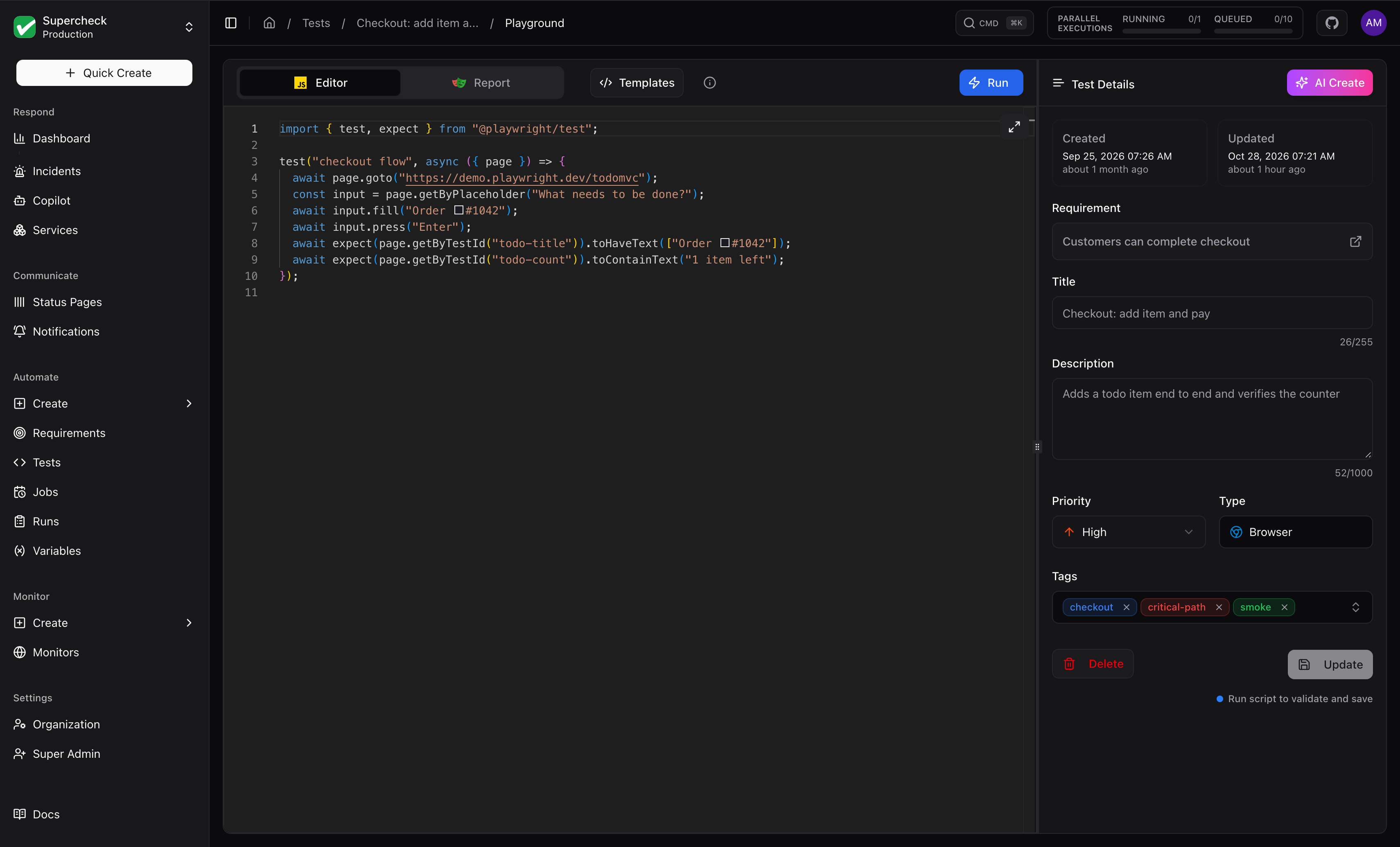
Editor and Runs
The editor is Monaco with TypeScript/JavaScript highlighting, Playwright IntelliSense, live syntax checks, auto-formatting, and getVariable() / getSecret() for project configuration. Check a script here before adding it to a job or monitor.
Use Cancel to stop a running test. You can save a draft at any time, even while it is failing; run and validate it before relying on it in a job or monitor.
AI Create
Describe the behavior you want to test. AI Create suggests a script for you to review, edit, and run.
Beta Feature: AI-generated browser tests may require refinement. For best results, record your test first using the Supercheck Recorder Extension or Playwright's codegen, then use AI Create to enhance or modify it. Review all generated code before running.
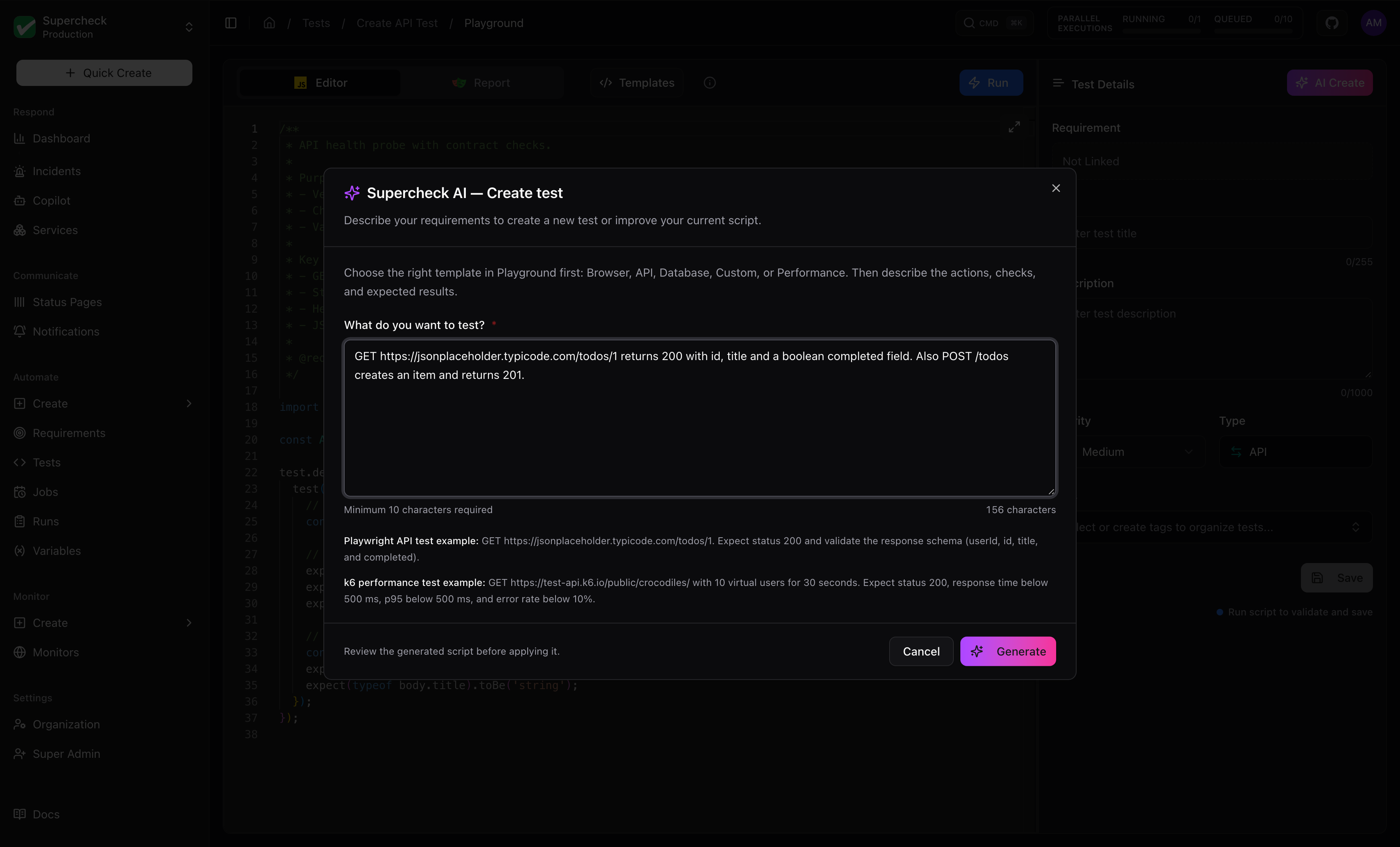
How to Use AI Create
Select AI Create and describe the test in plain language.
Select Generate and review the streamed script in the diff viewer.
Select Apply to Editor, or Discard to close it.
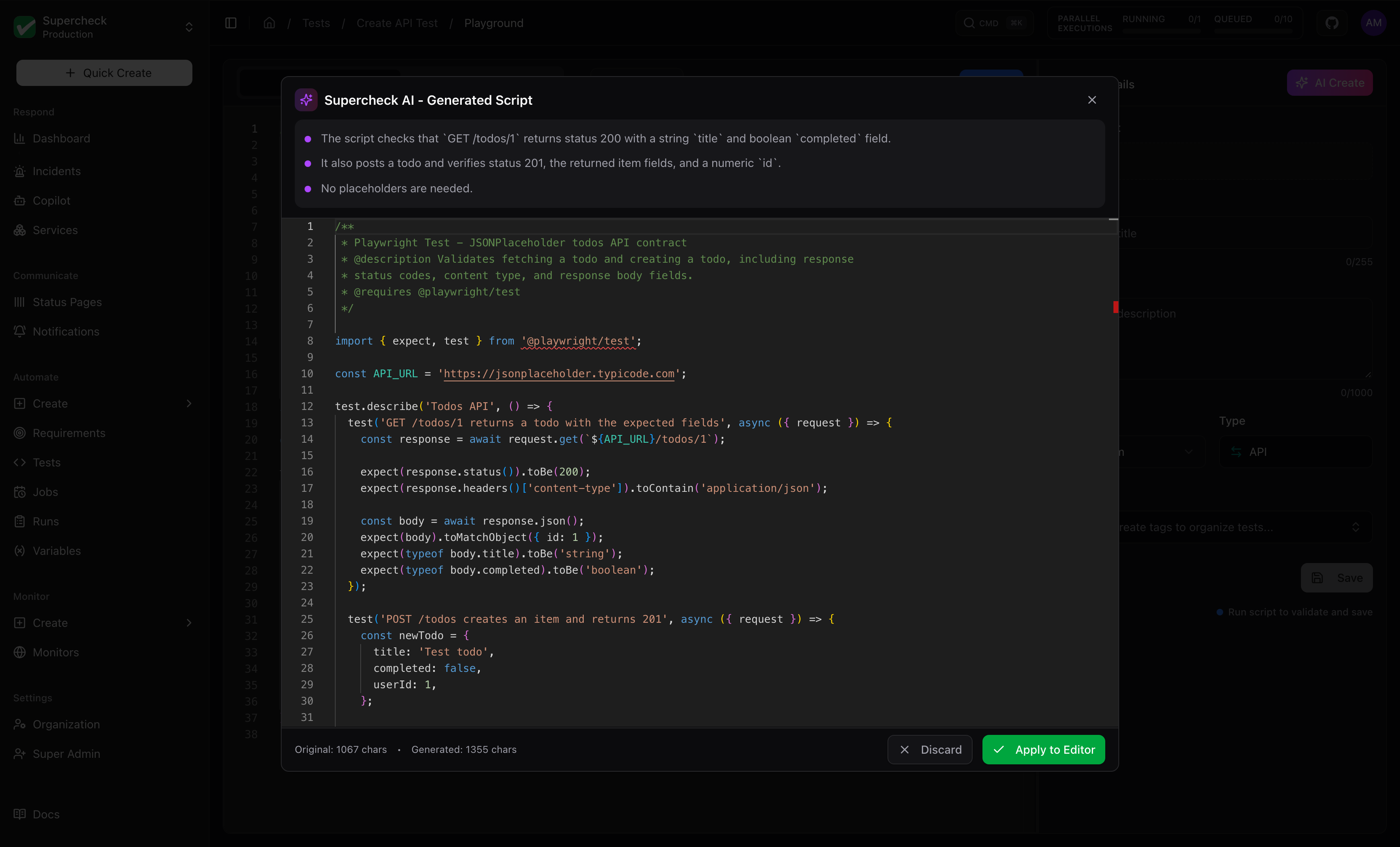
Review Generated Code
Check the target URL, selectors, credentials, waits, and assertions. Run the script to confirm it tests the expected behavior.
AI Fix
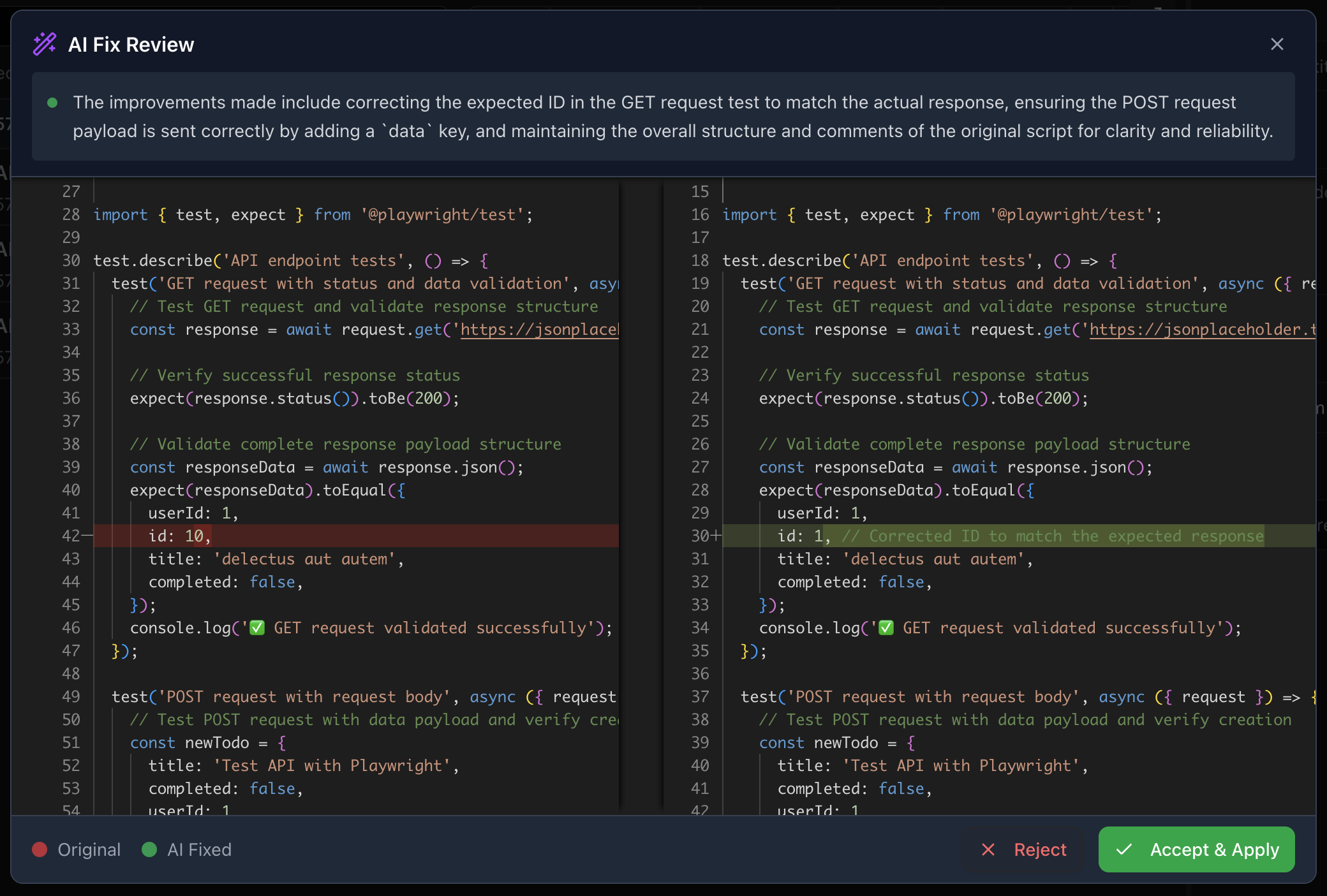
After a failed run, use AI Fix to review suggested changes. Apply only changes you understand, then run the test again.
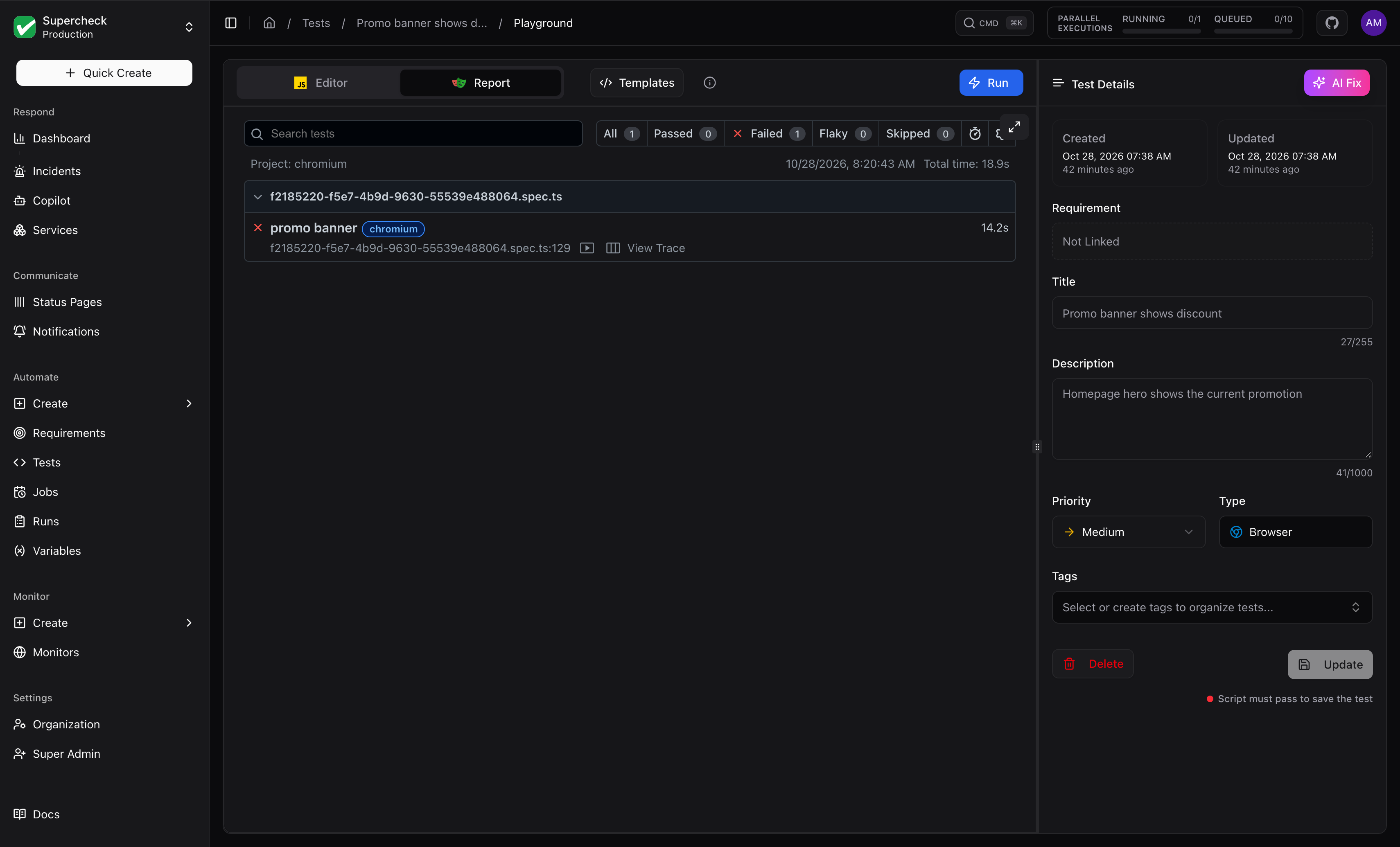
Use AI Fix
After a failed run, select AI Fix. It analyzes the error report and your code.
Review the original-versus-suggested diff, edit if needed, then Accept & Apply or Reject.
Run the test again to verify the change.
Templates
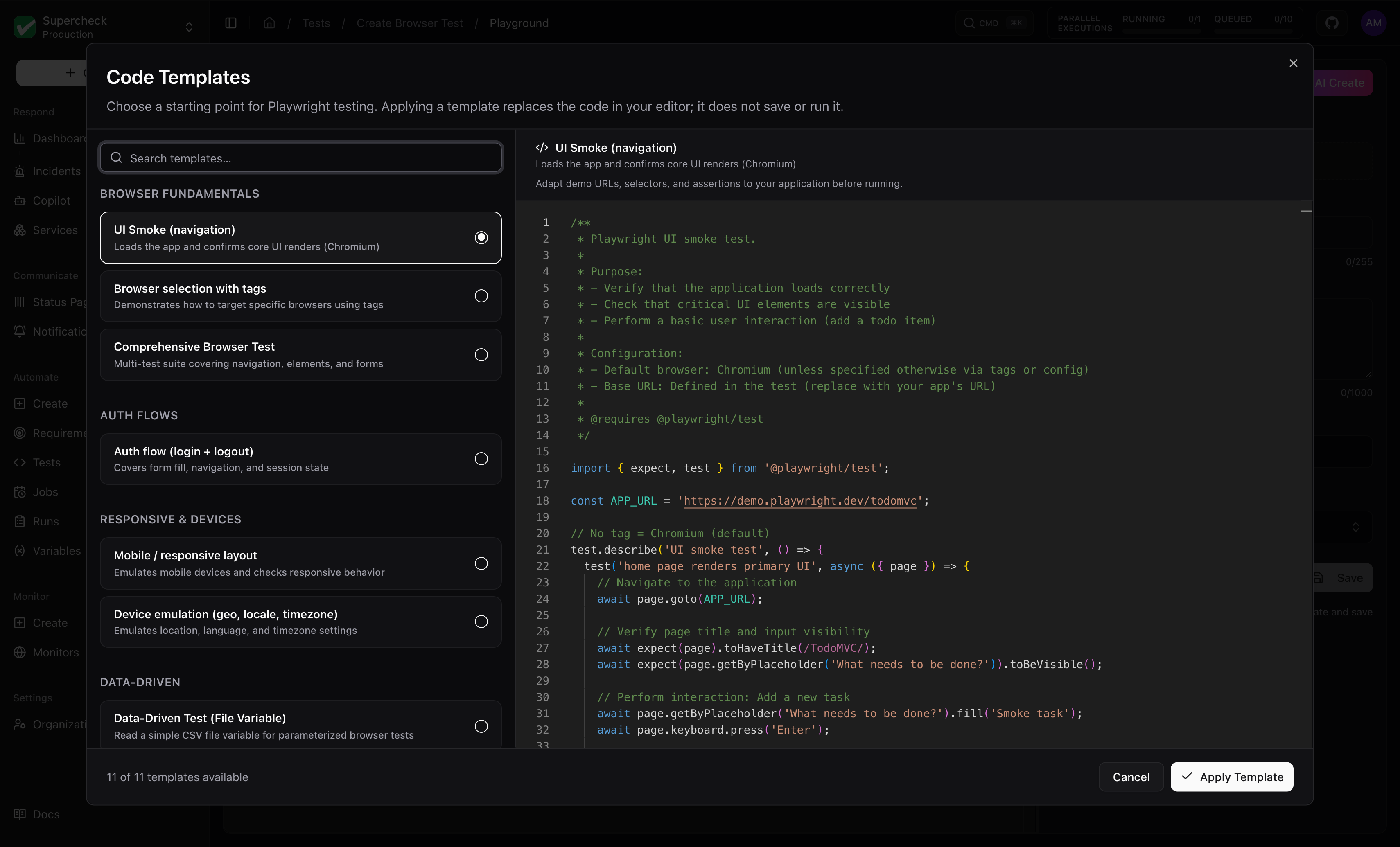
Start with working templates for common scenarios, then customize them.
Available Templates
| Category | Templates |
|---|---|
| Browser fundamentals | UI Smoke (navigation), Browser selection with tags, Comprehensive Browser Test |
| Auth flows | Auth flow (login + logout) |
| Responsive & devices | Mobile / responsive layout, Device emulation (geo, locale, timezone) |
| Data-Driven | Data-Driven Test (File Variable) |
| Diagnostics | Failure Diagnostics |
| Authentication | Passkey Registration and Sign-In |
| AI Applications | WebMCP Tools (Experimental, Chromium) |
| Reliability | Shared Resource Lock |
Using Templates
Select Templates in the toolbar, browse or search, and click one to preview it.
Select Apply Template, then customize URLs, selectors, and test data.
Test Reports
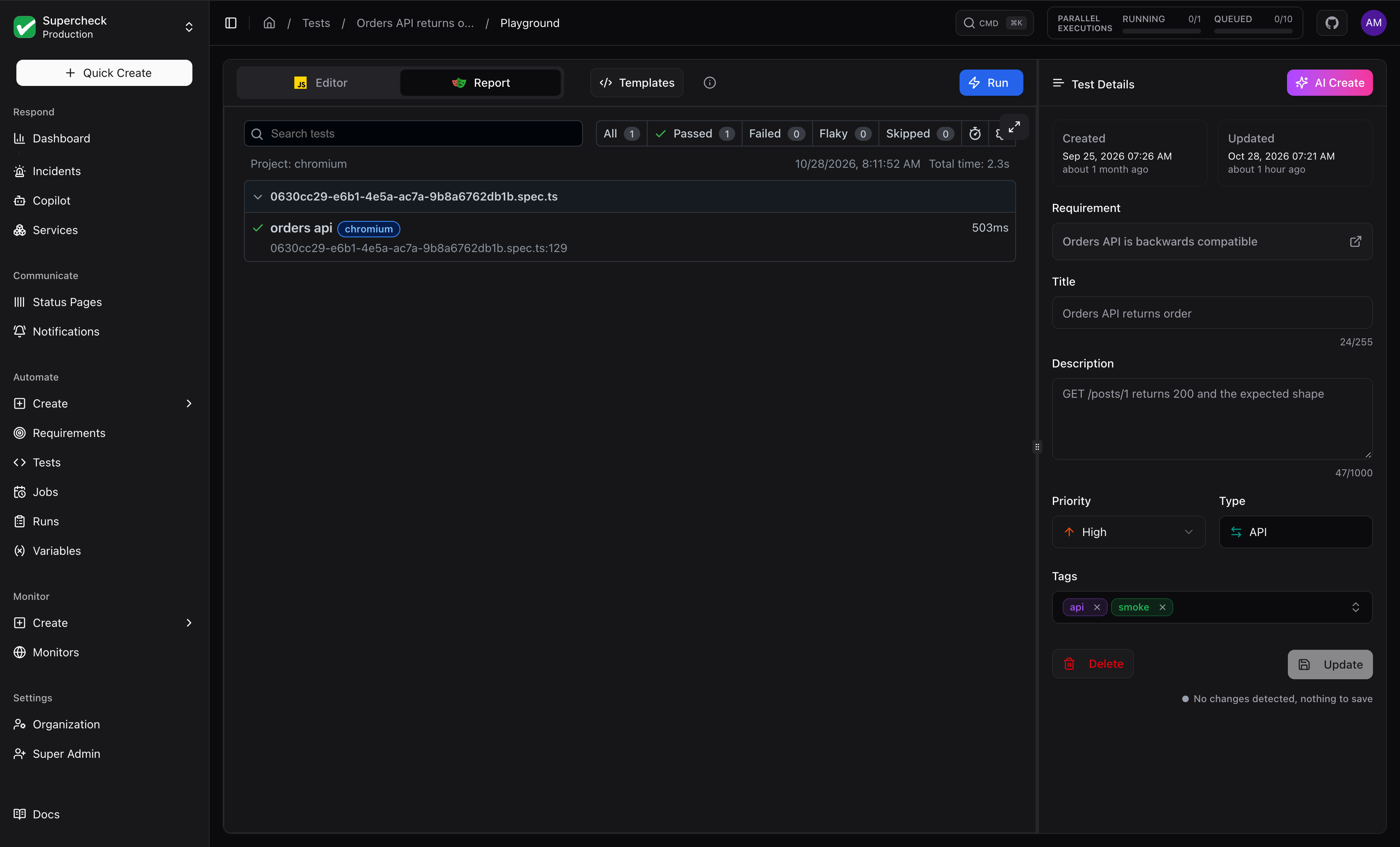
Every run produces a report with debugging artifacts:
Report Contents
| Artifact | Description | Use For |
|---|---|---|
| Screenshots | Captured at each step and on failure | Visual verification, debugging UI issues |
| Trace | Interactive step-by-step replay | Understanding test flow, timing issues |
| Console Logs | Browser console output | JavaScript errors, debug messages |
| Network | All HTTP requests and responses | API debugging, performance analysis |
Using Variables
Read project configuration, secrets, and file-backed test data:
// Regular variables (logged normally)
const baseUrl = getVariable('BASE_URL');
const timeout = getVariable('TIMEOUT');

// Secrets are resolved at runtime and redacted from logs
const apiKey = getSecret('API_KEY');
const password = getSecret('DB_PASSWORD');

// File-backed test data
const usersCsv = readFile('USERS_CSV');

// Using in Playwright
await page.goto(baseUrl);
await page.fill('#password', password);
Keep credentials in Secrets and use File variables for non-sensitive fixtures and datasets. Avoid logging secret values.
See Variables for setup instructions.