
Jobs
Schedule and automate test executionEdit
Jobs group tests and run them on a schedule, on demand, or from your CI/CD pipeline: nightly regression, post-deploy smoke tests and continuous checks of critical flows.
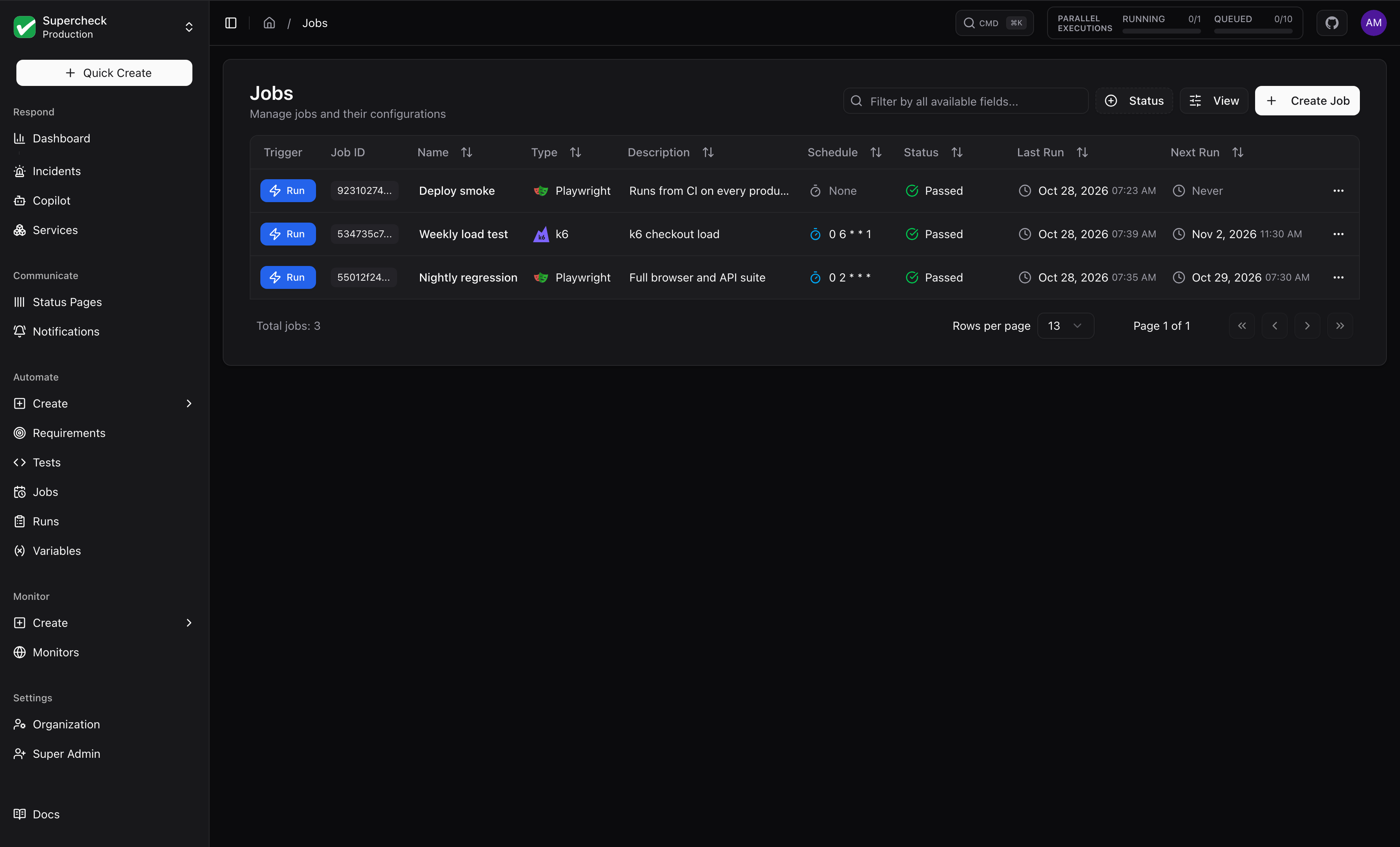
What Jobs Do
When a job executes:
Selected tests run in sequence (Playwright jobs). A k6 performance job runs exactly one test.
Results are collected and aggregated, and reports are generated.
Your selected channels are notified for the alert types you enable.
Creating a Job
On Supercheck Cloud, creating or editing a job requires an active organization subscription and a valid billing customer. These billing checks do not apply to self-hosted installations.
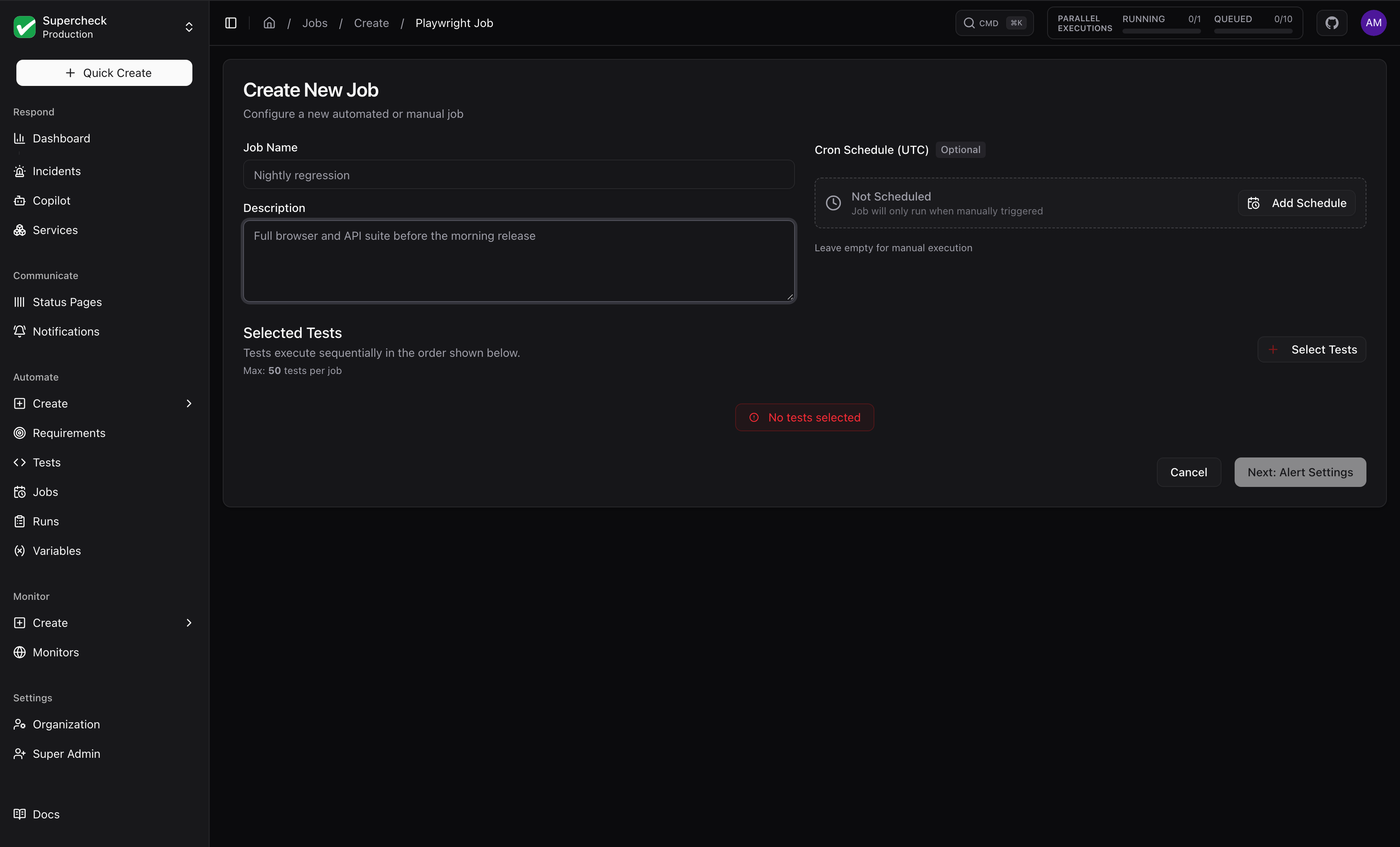
Step 1: Basic Information
Open Jobs and click Create Job (or use Quick Create → Playwright Job)
Enter a descriptive name (e.g., "Nightly Regression Suite"), up to 255 characters
Add a description explaining what the job tests (required)
Step 2: Select Tests
Pick any mix of browser, API, database and custom tests, up to 50 per job. A k6 performance job runs exactly one performance test.
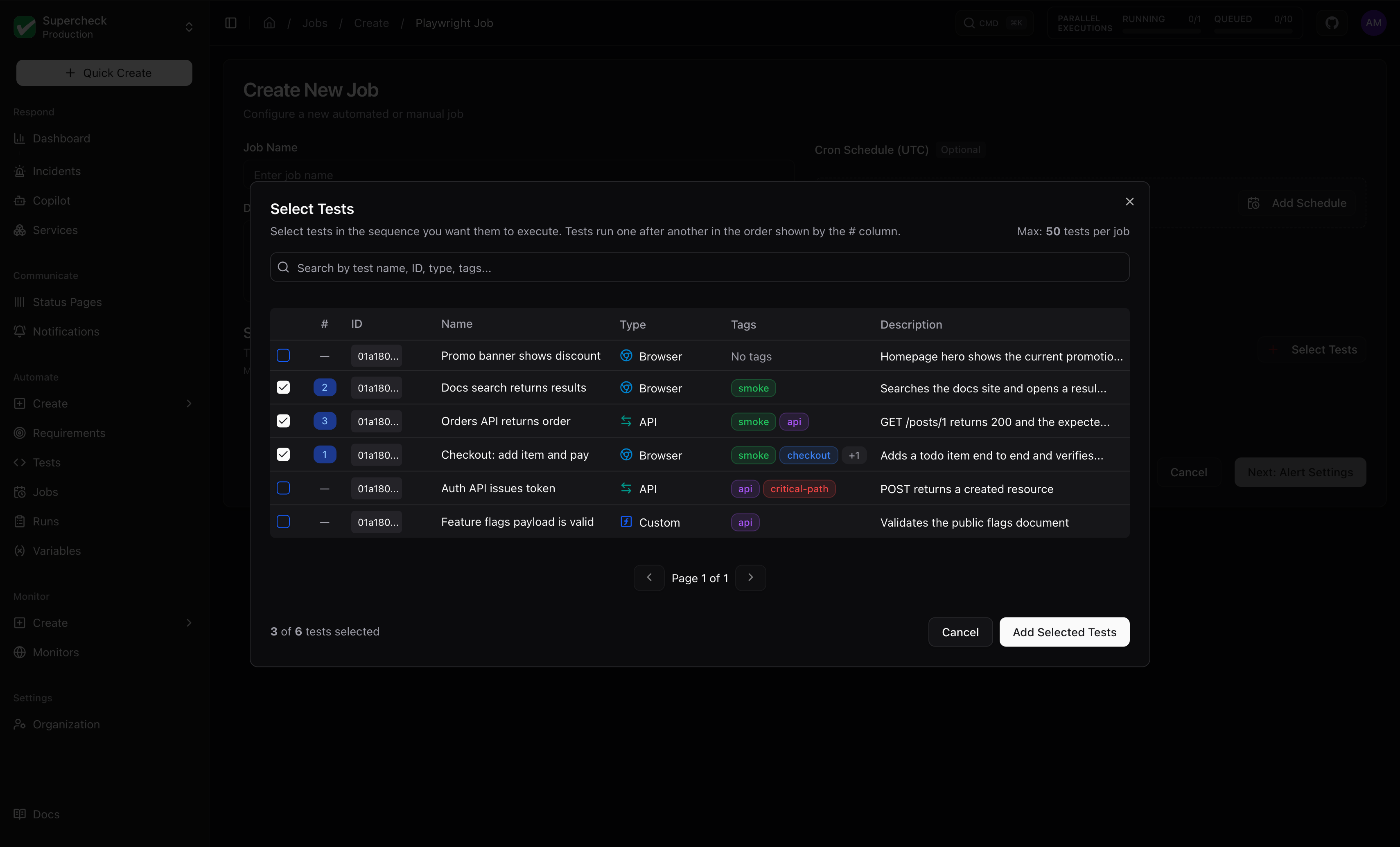
Tests run in the order you select them. Put critical tests first so failures are detected early.
The Playwright HTML report will display tests in their execution order, making it easy to trace through the test sequence.
Step 3: Configure Schedule
Choose when the job runs with the schedule builder: an hourly, daily, weekly, monthly or yearly time. Leave the schedule empty for manual execution. To trigger it from CI, save the job, then open its Edit action and go to CI/CD Settings.
The builder offers hourly and longer periods. Schedules are stored as five-field cron expressions (minute, hour, day of month, month, day of week), so the CLI and API can set any cron down to one minute. Schedules run in UTC.
The Jobs list shows your 100 most recently created jobs. A job beyond that is still reachable by its direct link.
Step 4: Configure Alerts
Set up notifications for job results:
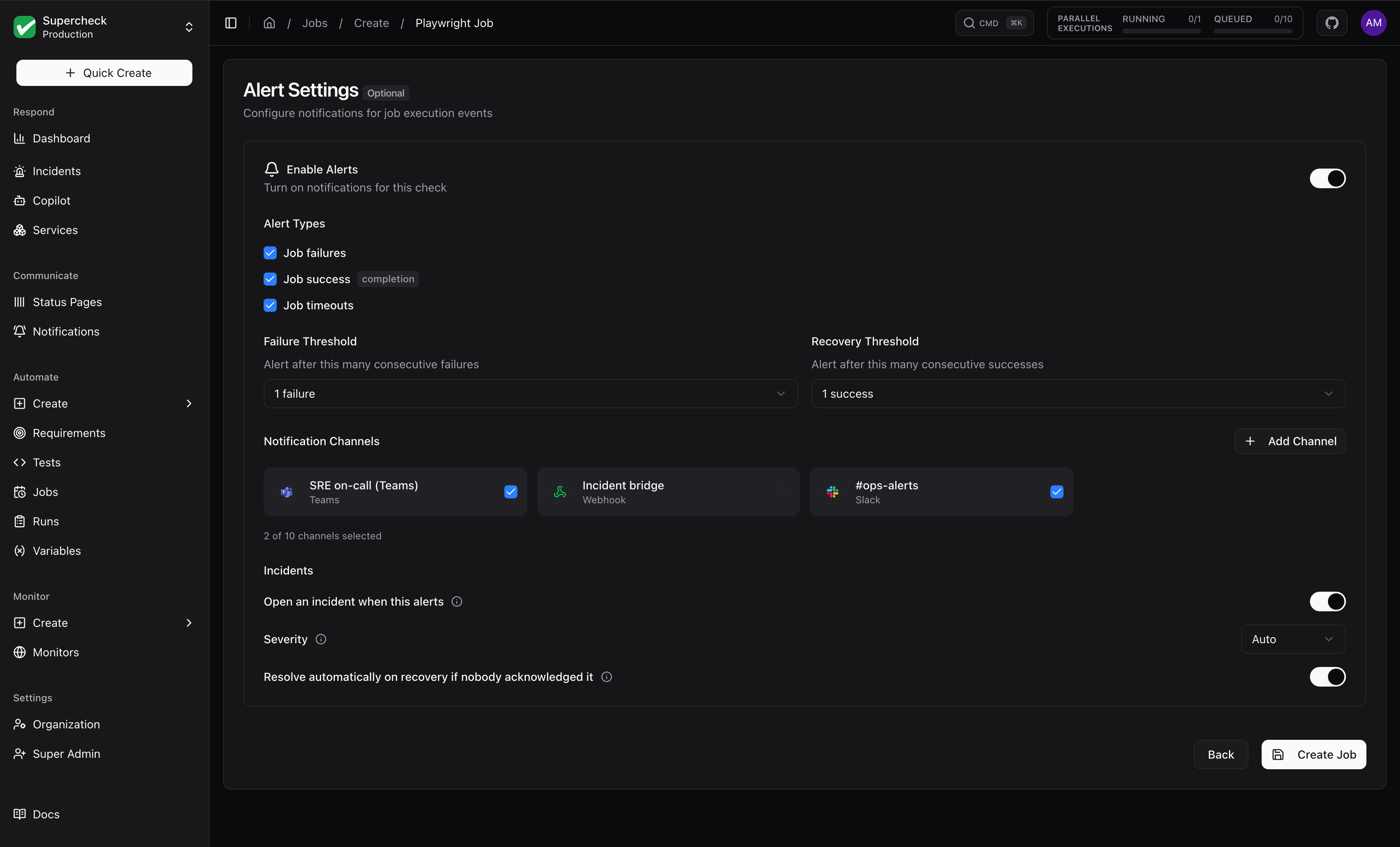
| Setting | Description |
|---|---|
| Job failures | Notify when any test in the job fails |
| Job success completion | Notify when all tests pass (optional) |
| Job timeouts | Notify if the job exceeds its maximum execution time |
| Notification Channels | Select email, Slack, Discord, Telegram, Microsoft Teams, or webhook |
Failure and recovery thresholds count consecutive runs. Failed and errored runs both count toward the failure threshold. A different outcome breaks the consecutive sequence.
Incidents (in the same Alert Settings):
| Setting | What it does | Default |
|---|---|---|
| Open an incident when this alerts | Opens an incident, or joins the open one for this job | On |
| Severity | Auto derives SEV1 to SEV4 from the alert, or pick a fixed level | Auto |
| Resolve automatically on recovery if nobody acknowledged it | Resolves the incident when the job recovers, even if recovery alerts are off | On |
See How alerts become incidents.
Parallel execution
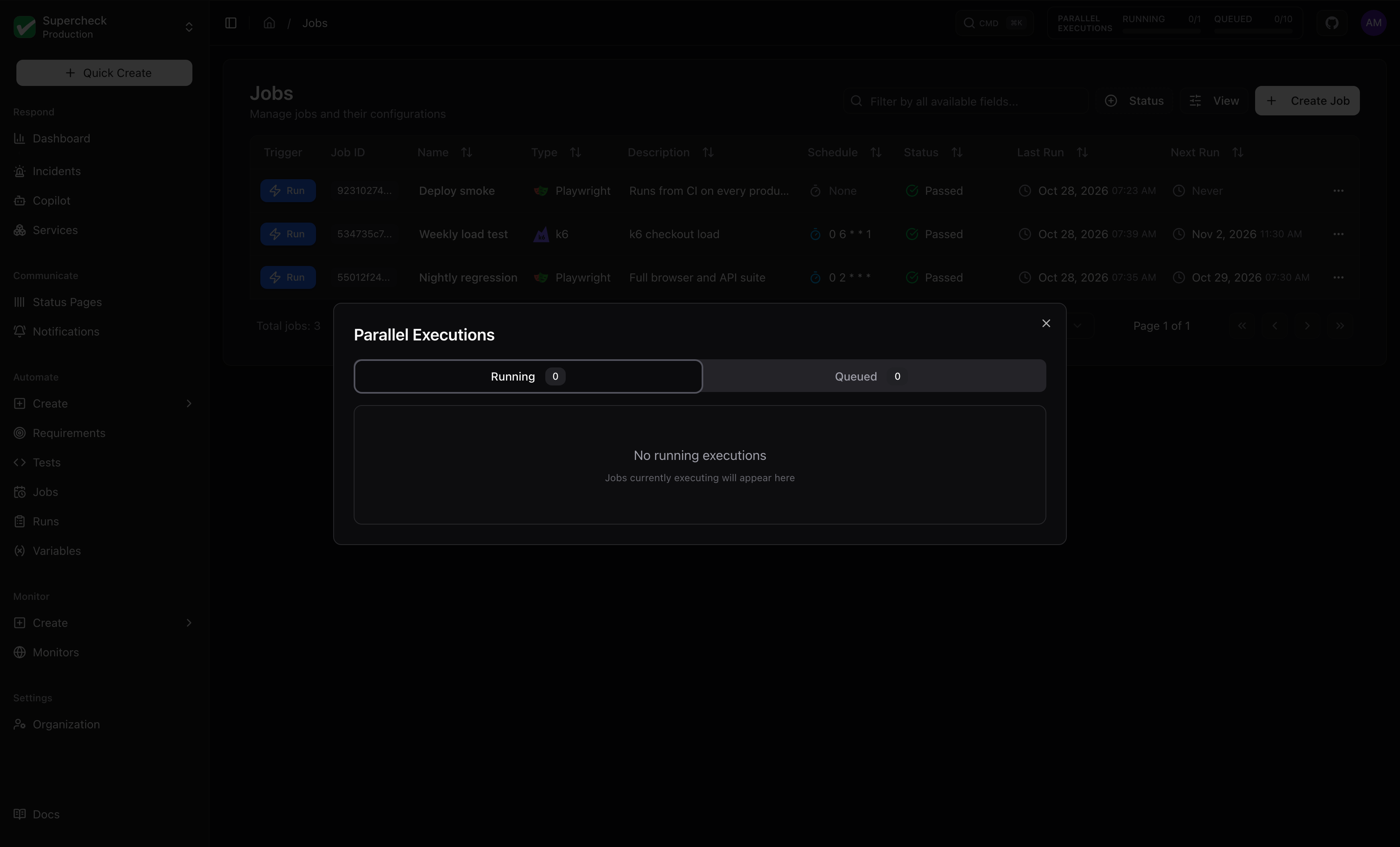
Jobs and tests run in parallel up to your capacity; further runs wait in the queue until a slot frees. Select the RUNNING / QUEUED indicator in the header to inspect, open, or cancel active and waiting runs. Self-hosted installations configure concurrent and queued limits; see Self-Hosted.
CI/CD Integration
Trigger jobs from your CI/CD pipeline to run tests after every deployment.
Create a job trigger key, store it as a secret in your CI/CD platform, and call the copied trigger URL after deployment. To make the pipeline wait for the result and fail when tests fail, use the CLI CI/CD workflow with supercheck job trigger --wait.
A trigger key acts as the user who created it. If that user can no longer trigger the job, for example after a role change or removal from the project, the key is refused with 403; it works again once their access is restored. Removing the user from the organization disables their trigger keys instead.
Scroll horizontally to view the full diagram.
This shows the CLI workflow with --wait. A plain HTTP trigger starts the job but does not wait for the test result.
Setting Up API Triggers
Open the job you want to trigger
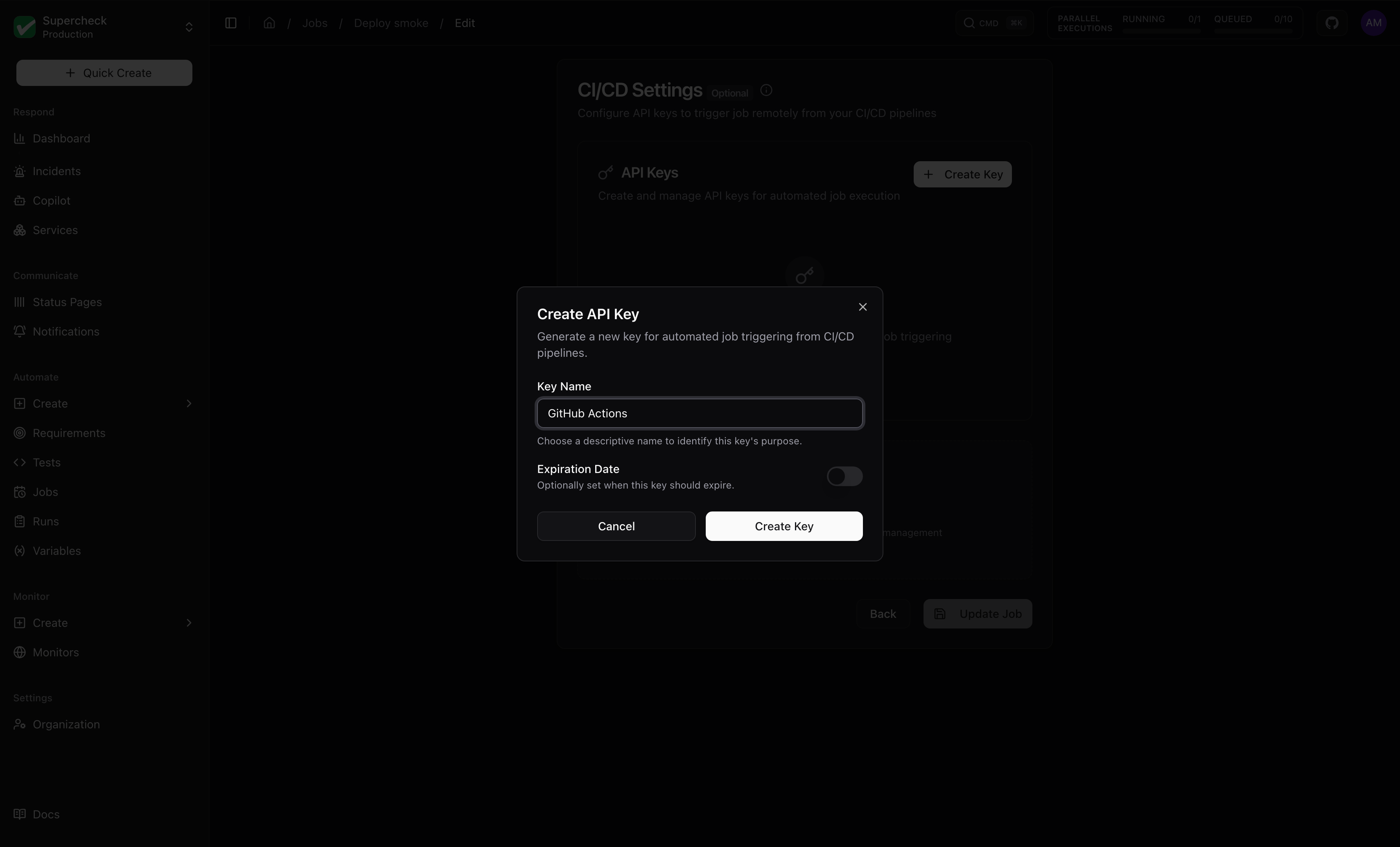
Open the job's Edit action and continue to CI/CD Settings
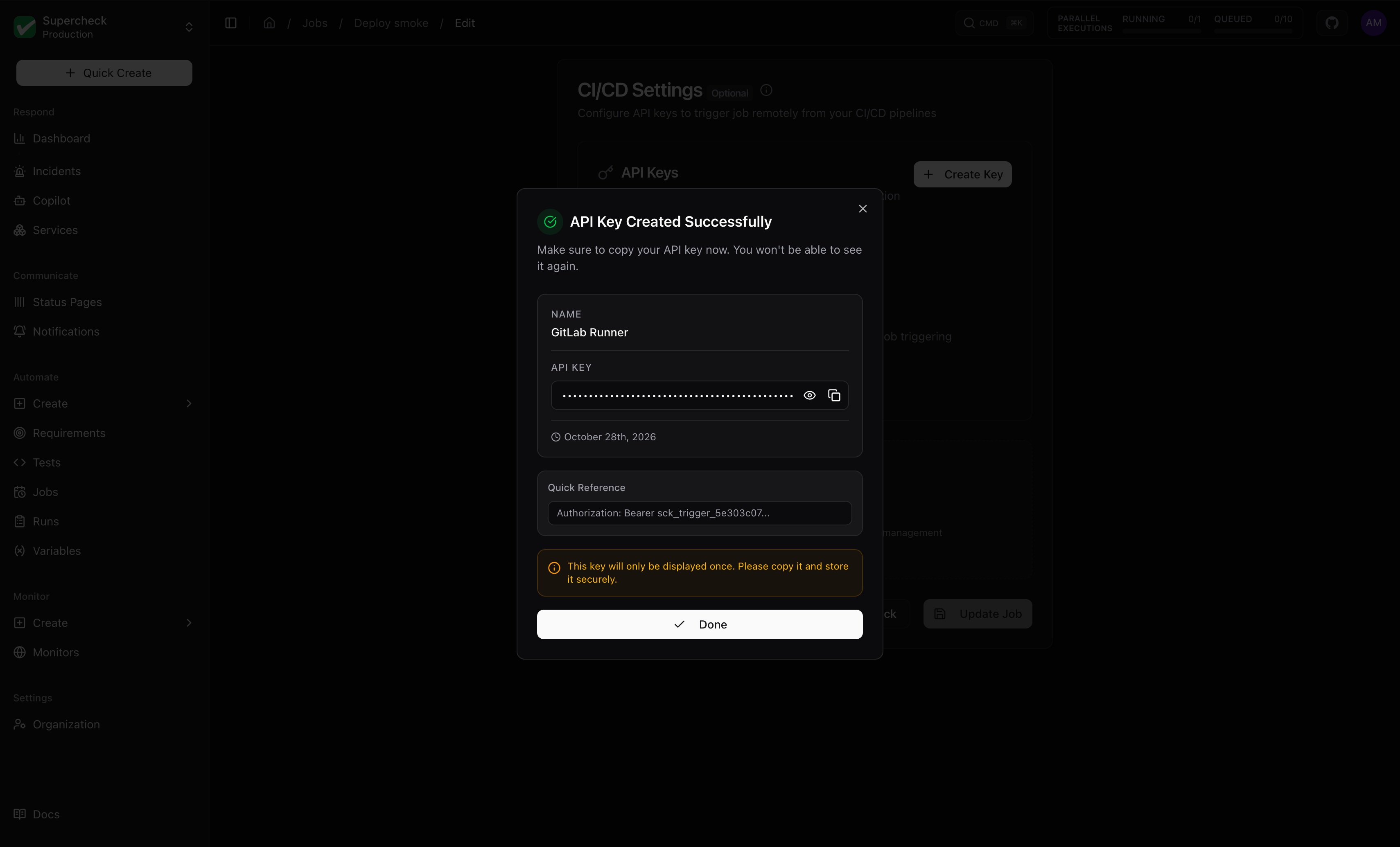
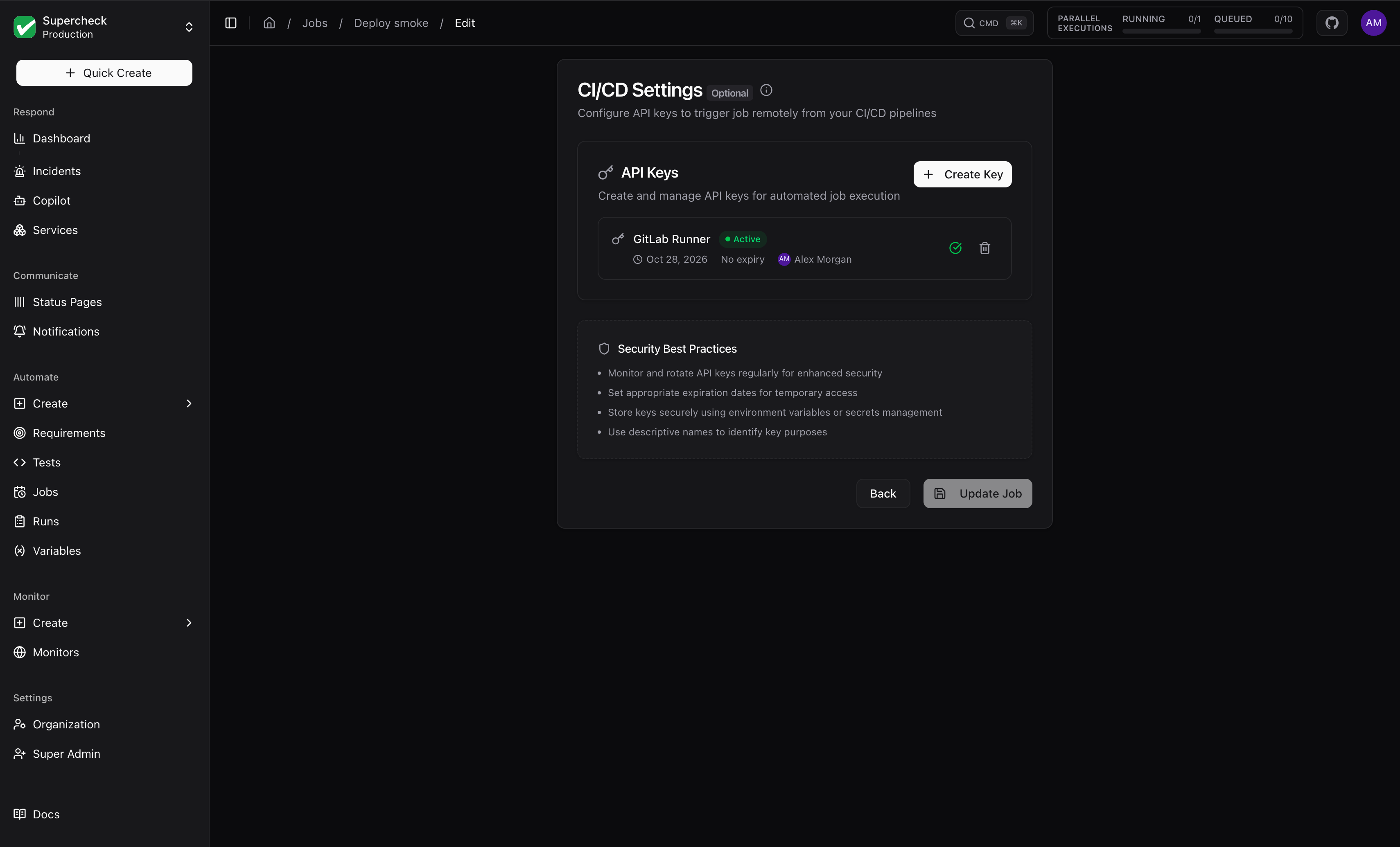
Select Create Key, then copy the trigger URL and API key
Triggering from CI/CD
Basic trigger:
curl --fail-with-body --show-error --silent -X POST \
  "https://your-instance.example/api/jobs/YOUR_JOB_ID/trigger" \
  -H "Authorization: Bearer YOUR_API_KEY"
Use a unique key per pipeline, store it as a CI secret, rotate it periodically, and revoke keys you no longer need.
Job Execution
Running Jobs Manually
Open the Jobs list and select Run on a job.
Follow live progress in the execution dialog; results appear when it completes.
Canceling Jobs
Select Cancel on a running job and confirm. Partial results and the cancellation status are in the run details.
Open a run to see its summary, per-test results, reports (screenshots, traces, logs), and history. See Runs.
Execution limits
| Job type | Limit |
|---|---|
| Playwright job | 60 minutes for the whole job. Each test also has its own 5-minute timeout |
| k6 performance job | Exactly one test, 60 minutes per execution |
k6 scripts are rejected when a literal vus, maxVUs, preAllocatedVUs, startVUs, or a VU stage target (top-level stages or ramping-vus scenarios) is above 1000, or a literal duration is above 60 minutes.