
Automate
Create and schedule automated testsEdit
Build automated tests for your web applications, APIs, databases, and infrastructure. Write tests in the interactive Playground with AI assistance, then schedule them to run automatically or trigger from your CI/CD pipeline.
Getting Started
Playground
Write and debug tests in an interactive editor with AI-powered code generation and automatic error fixing
Tests
Save, organize, and manage your test scripts across projects
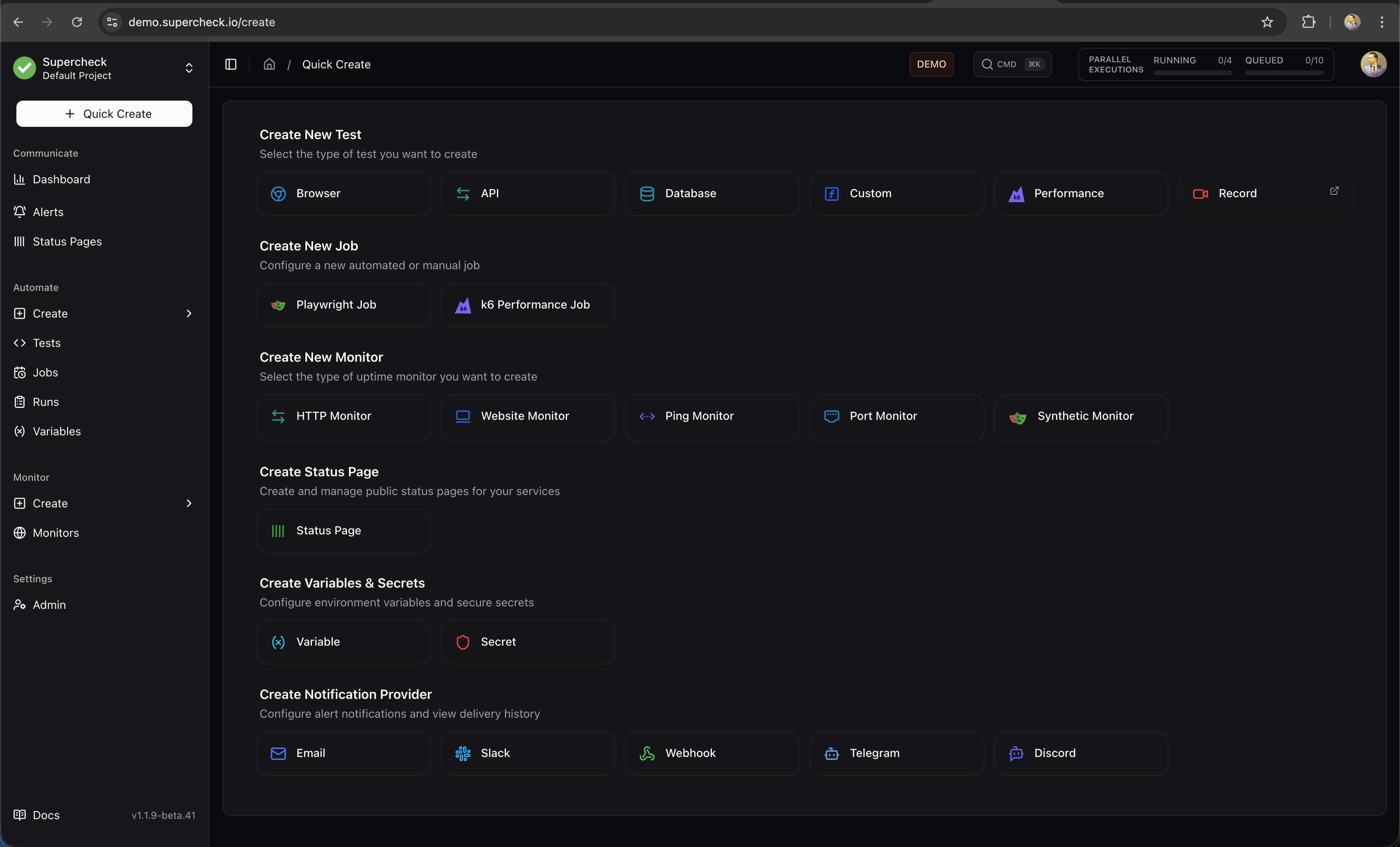
Quick Create
Use the Create menu from anywhere in the app to quickly add new tests, jobs, or monitors.
Test Types
Supercheck supports five test types, each optimized for different testing scenarios:
Browser Test
Playwright-based UI testing for user flows, form submissions, and visual validation with screenshots and traces
API Test
HTTP and GraphQL endpoint testing with request/response validation, authentication, and JSON assertions
Database Test
SQL queries against PostgreSQL, MySQL, and other databases with result validation and data integrity checks
Performance Test
k6 load testing with configurable virtual users, duration, and thresholds—run from US, EU, or APAC regions
Custom Test
Node.js scripts for custom scenarios, integrations, or any testing logic not covered by other types
Core Concepts
Jobs
Group tests together and run them on a schedule, manually, or via API triggers from your CI/CD pipeline
Runs
View execution history with detailed results, screenshots, traces, and logs for every test run
Variables
Store configuration values and encrypted secrets that your tests can access at runtime
Key Features
AI-Powered Development
- AI Create — Generate test scripts from plain English (beta for browser tests—record first, then enhance)
- AI Fix — Automatically analyze failures and suggest code fixes for selector, timing, and assertion issues
- AI Analyze — Get detailed insights on job runs and monitor health with AI-powered analysis reports
Rich Test Reports
- Screenshots — Captured at each step and on failure
- Traces — Interactive step-by-step replay with DOM inspection
- Videos — Full browser recordings for visual debugging
- Logs — Console output, network requests, and error details
Flexible Scheduling
- Cron expressions — Run tests at specific times (nightly, hourly, weekly)
- Interval-based — Run every X minutes or hours
- CI/CD triggers — API endpoints for pipeline integration
- Manual execution — Run on-demand from the UI
Multi-Region Execution
- US East — Ashburn, Virginia
- EU Central — Nuremberg, Germany
- Asia Pacific — Singapore
Run performance tests from multiple regions to measure latency and ensure global availability.
Parallel Execution
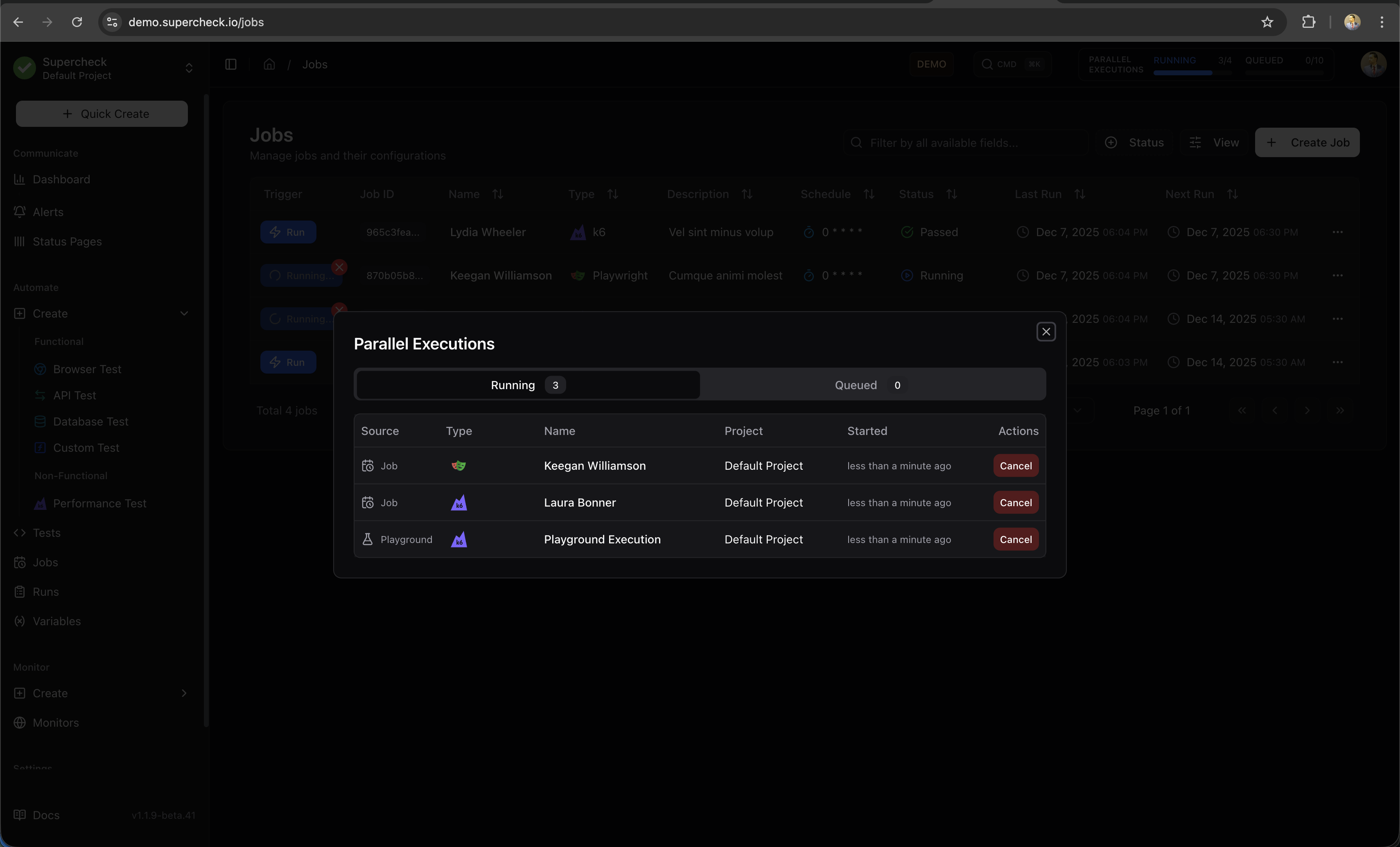
Run multiple tests and jobs simultaneously to reduce total execution time. The parallel execution panel in the header shows real-time status of all running and queued executions.
How it works:
- Tests and jobs are queued and processed by available workers
- Multiple executions run in parallel up to your plan's capacity limit
- View all running executions across your organization in real-time
- Cancel any running execution if needed
Capacity limits by plan:
| Plan | Concurrent Executions | Queued Executions |
|---|---|---|
| Plus | 5 | 50 |
| Pro | 10 | 100 |
| Self-hosted | Configurable | Configurable |
The parallel execution indicator appears in the top navigation bar showing RUNNING and QUEUED counts. Click it to view details and manage executions.
Workflow Overview
Next Steps
- New to testing? Start with the Playground to write your first test
- Have existing tests? Learn about Jobs to schedule automated runs
- Need secrets? Set up Variables for API keys and credentials
External Documentation
For deeper understanding of the testing frameworks:
- Playwright Documentation — Browser automation for browser, API, and database tests
- k6 Documentation — Load testing for performance tests