
Playground
Interactive test editor with AI assistanceEdit
The Playground is an interactive development environment for writing, running, and debugging tests. It combines a professional code editor with AI-powered assistance to help you create reliable tests faster.
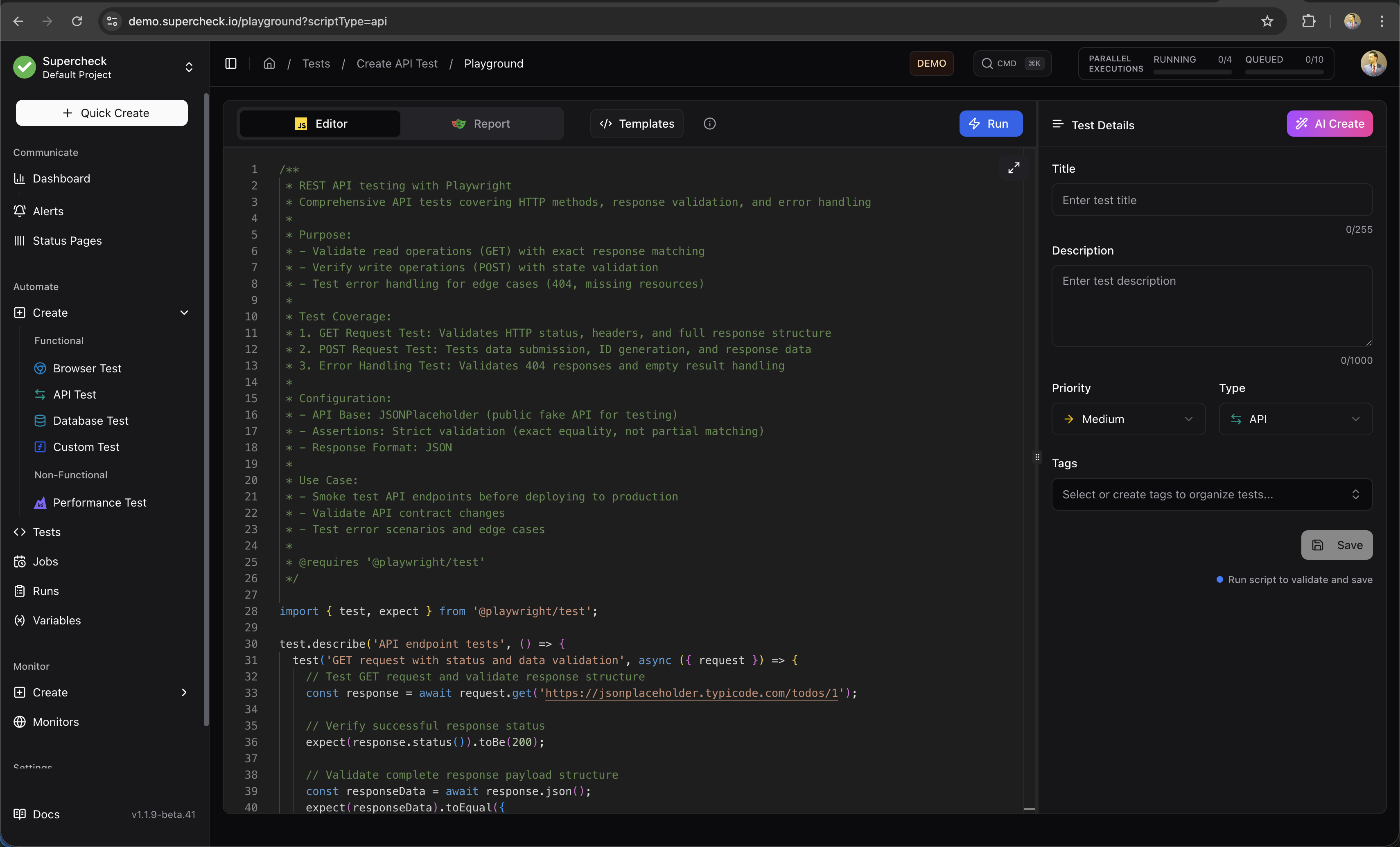
Editor Features
The Playground uses Monaco Editor (the same editor that powers VS Code) with features tailored for test development:
- Syntax Highlighting — Full TypeScript/JavaScript support with Playwright API recognition
- Auto-completion — IntelliSense for Playwright methods, selectors, and assertions
- Error Detection — Real-time syntax validation before you run
- Code Formatting — Automatic formatting for clean, readable code
- Variable Access — Use
getVariable()andgetSecret()for project configuration
Running Tests
Click Run to execute your test in an isolated container environment.
Cancel a running test at any time. The container is immediately stopped and resources are released.
Tests must pass before saving. Only successfully executed tests can be saved. If your test fails, fix the issues and run it again until it passes.
AI Create
Generate complete, working test scripts from plain English descriptions. AI Create uses GPT-4o-mini to understand your requirements and produce well-structured Playwright code.
Beta Feature: AI-generated browser tests may require refinement. For best results, record your test first using Playwright's codegen, then use AI Create to enhance or modify it. Review all generated code before running.
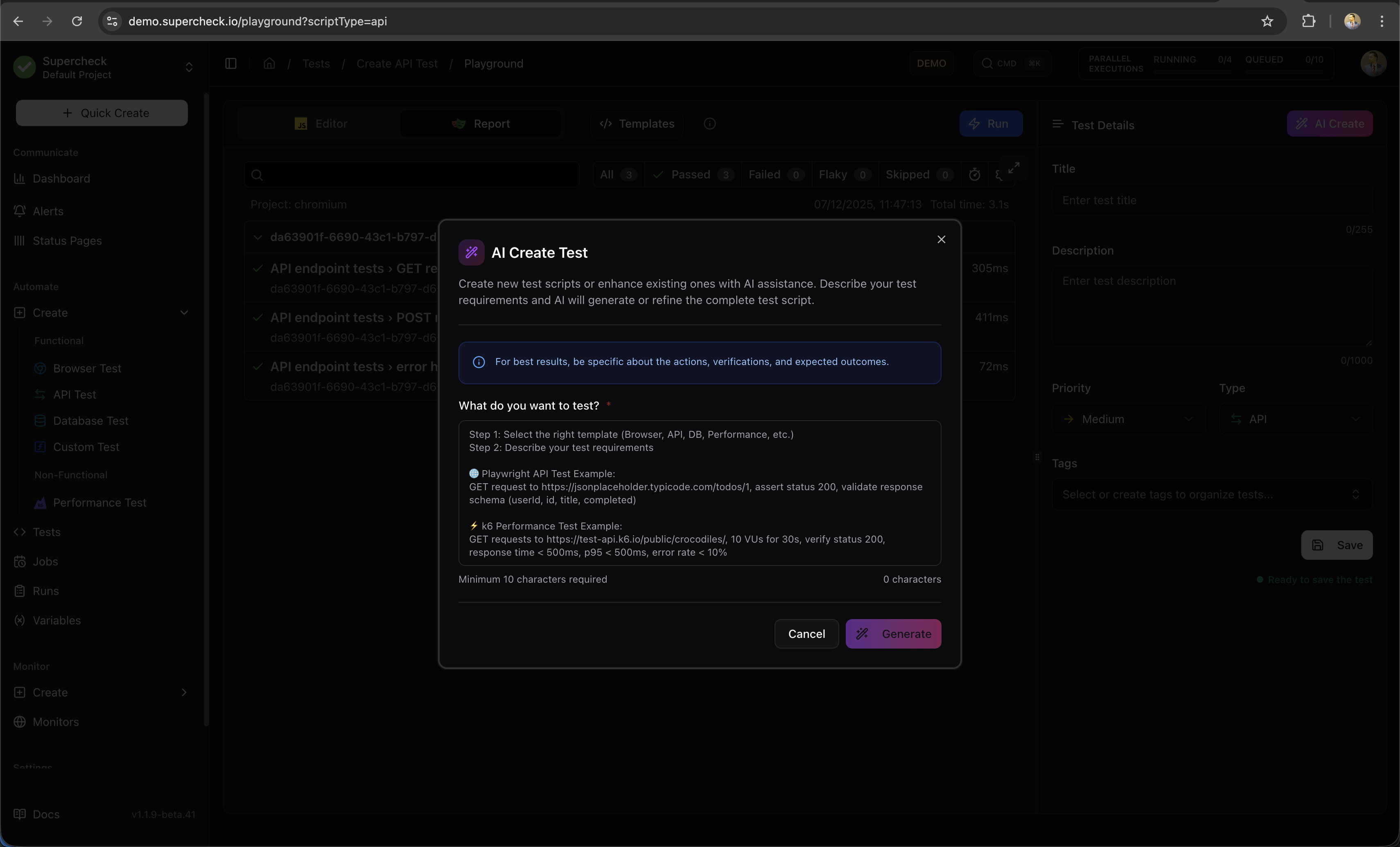
How to Use AI Create
- Click the AI Create button (purple gradient)
- Describe what you want to test in natural language
- Click Generate to start streaming the code
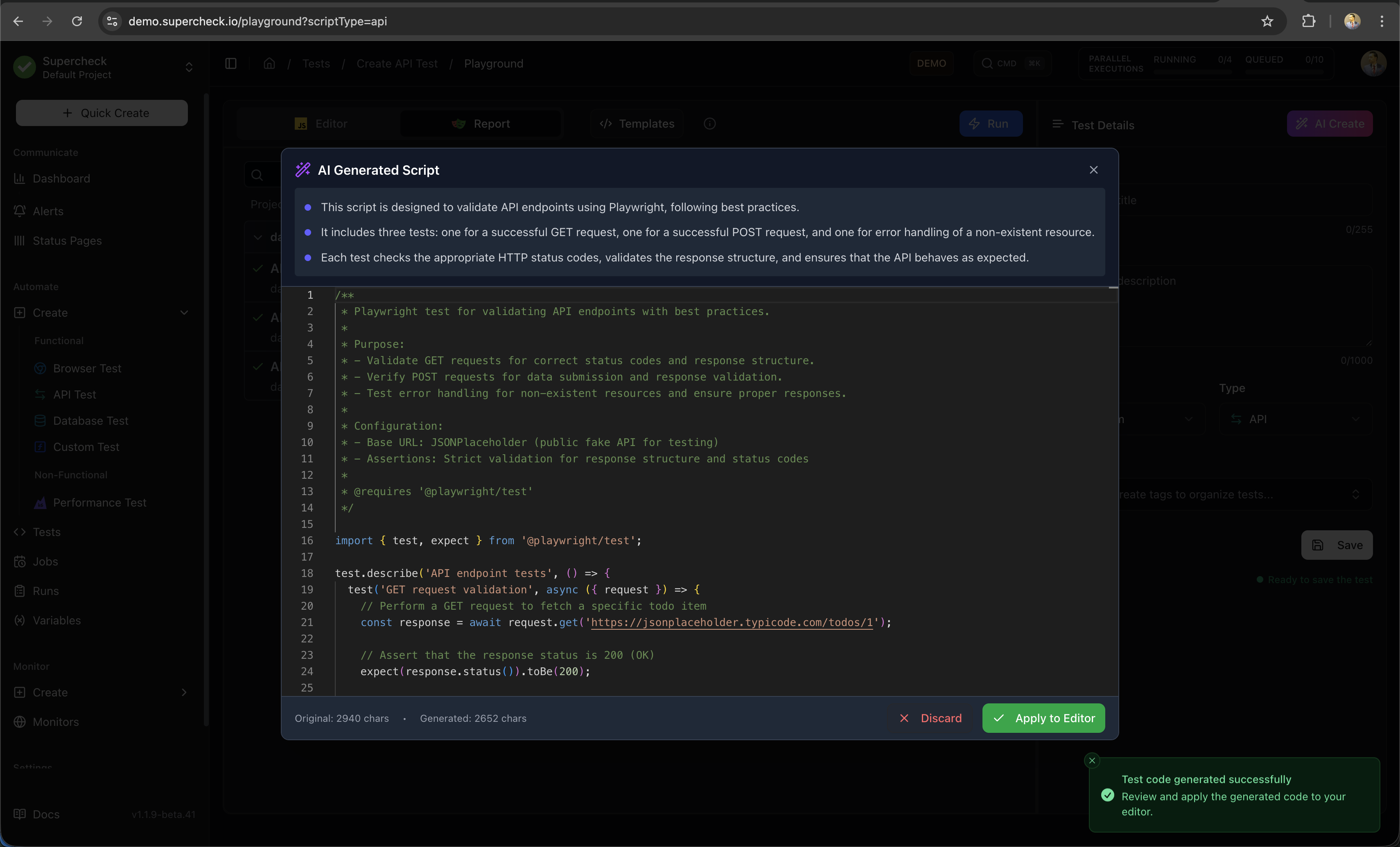
- Review the generated script in the diff viewer
- Click Accept to use the code, or Reject to discard
Writing Effective Prompts
Good prompts are specific and include:
- The user action you want to test
- Expected outcomes or assertions
- Any specific elements or data to interact with
Example prompts:
| Prompt | What AI Generates |
|---|---|
| "Test login with email user@example.com and password test123, verify dashboard loads" | Complete login flow with form filling, submission, and URL assertion |
| "Check that the /api/health endpoint returns 200 and includes status: ok" | API test with fetch, status check, and JSON body validation |
| "Verify user can add a product to cart, view cart, and see correct total" | Multi-step e-commerce flow with navigation and assertions |
| "Test that the contact form validates required fields and shows error messages" | Form validation test with empty submission and error checking |
What AI Create Produces
Generated tests include:
- Proper imports (
@playwright/test) - Descriptive test names and comments
- Robust selectors (prefers data-testid, aria-labels)
- Appropriate waits and assertions
- Error handling where needed
AI Fix
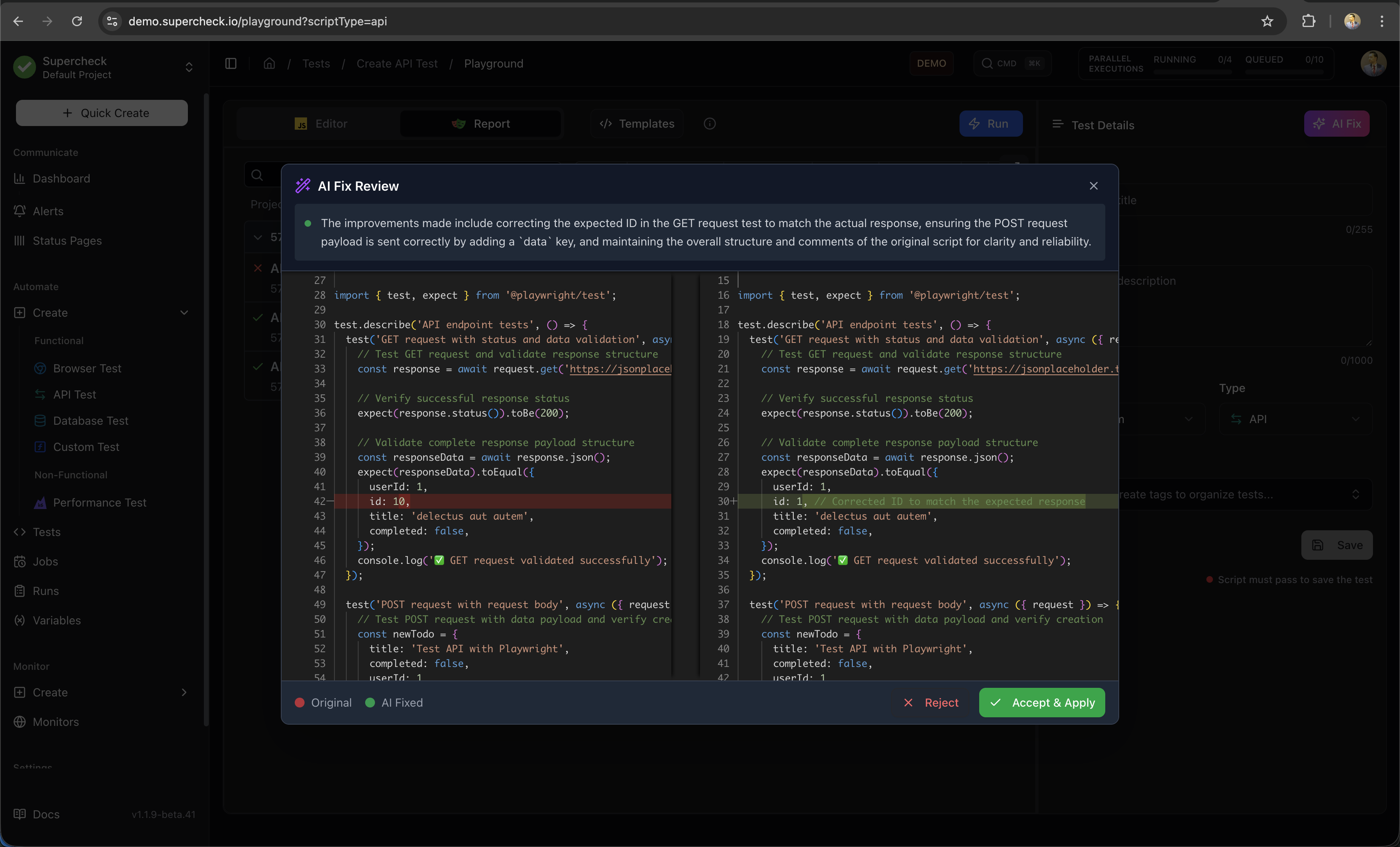
When a test fails, AI Fix analyzes the error and suggests corrections. It examines the failure report, identifies the root cause, and generates a fixed version of your code.
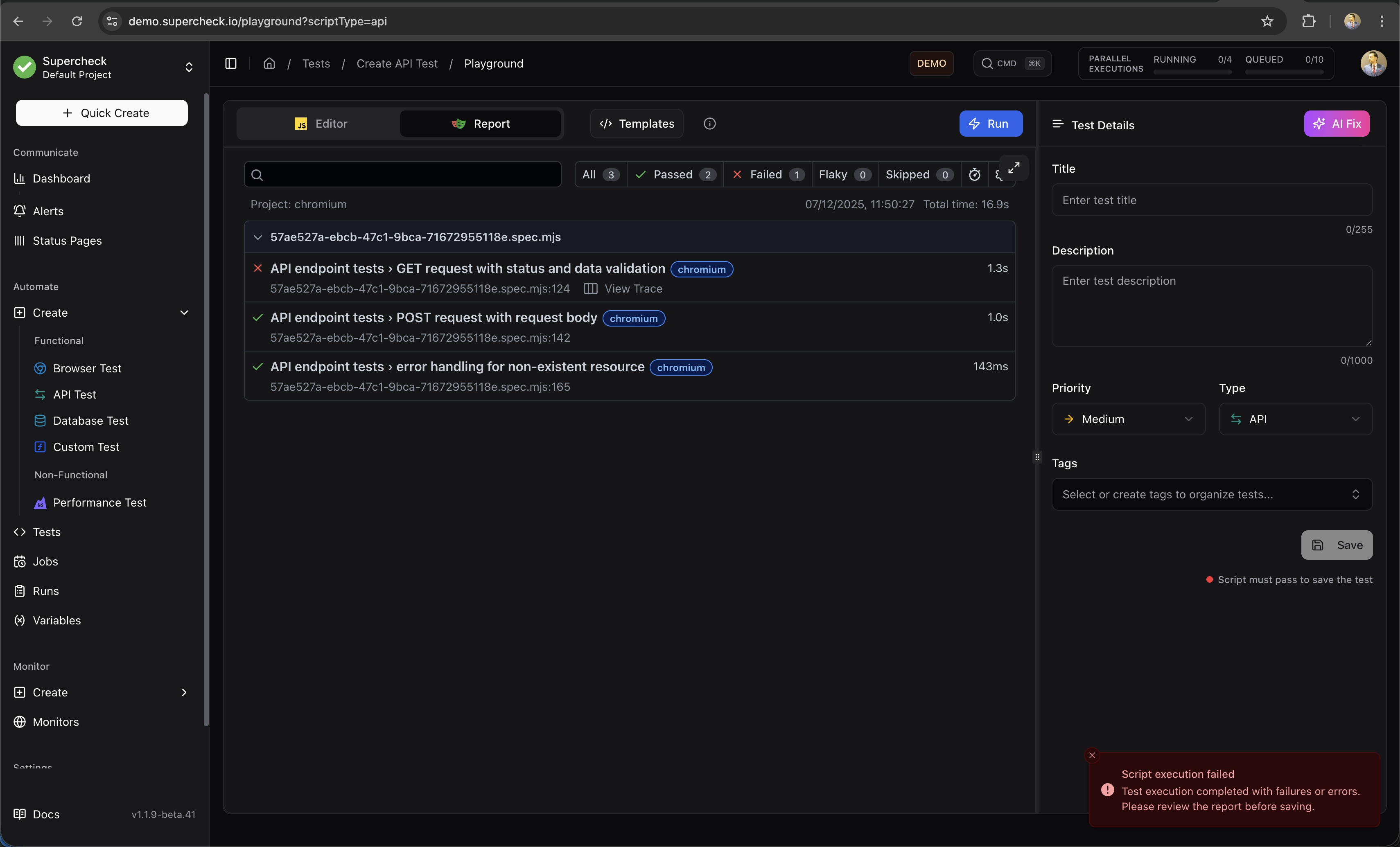
How AI Fix Works
- Run a test that fails
- Click the AI Fix button (appears after failure)
- AI analyzes the error report and your code
- A diff viewer shows original vs. suggested fix
- Review changes, edit if needed, then Accept or Reject
What AI Fix Can Repair
AI Fix is effective for code-level issues that can be resolved by modifying your test:
| Issue Type | Example | AI Fix Action |
|---|---|---|
| Selector Issues | Element not found, wrong selector | Updates selector to match current DOM |
| Timing Problems | Element not visible, timeout | Adds appropriate waits or increases timeout |
| Assertion Failures | Expected value mismatch | Corrects assertion or expected value |
| Navigation Errors | Page not loading, wrong URL | Fixes URL or adds navigation waits |
When AI Fix Shows Guidance Instead
Some failures require manual investigation rather than code changes. In these cases, AI Fix displays a guidance modal with troubleshooting steps:
- Network Issues — Server unreachable, DNS failures, HTTP 5xx errors
- Authentication Failures — Invalid credentials, expired tokens, 401/403 errors
- Infrastructure Problems — Database down, service unavailable
- Permission Errors — Access denied, insufficient privileges
AI Fix preserves all your original comments and code structure. It only modifies the specific lines needed to fix the issue.
Templates
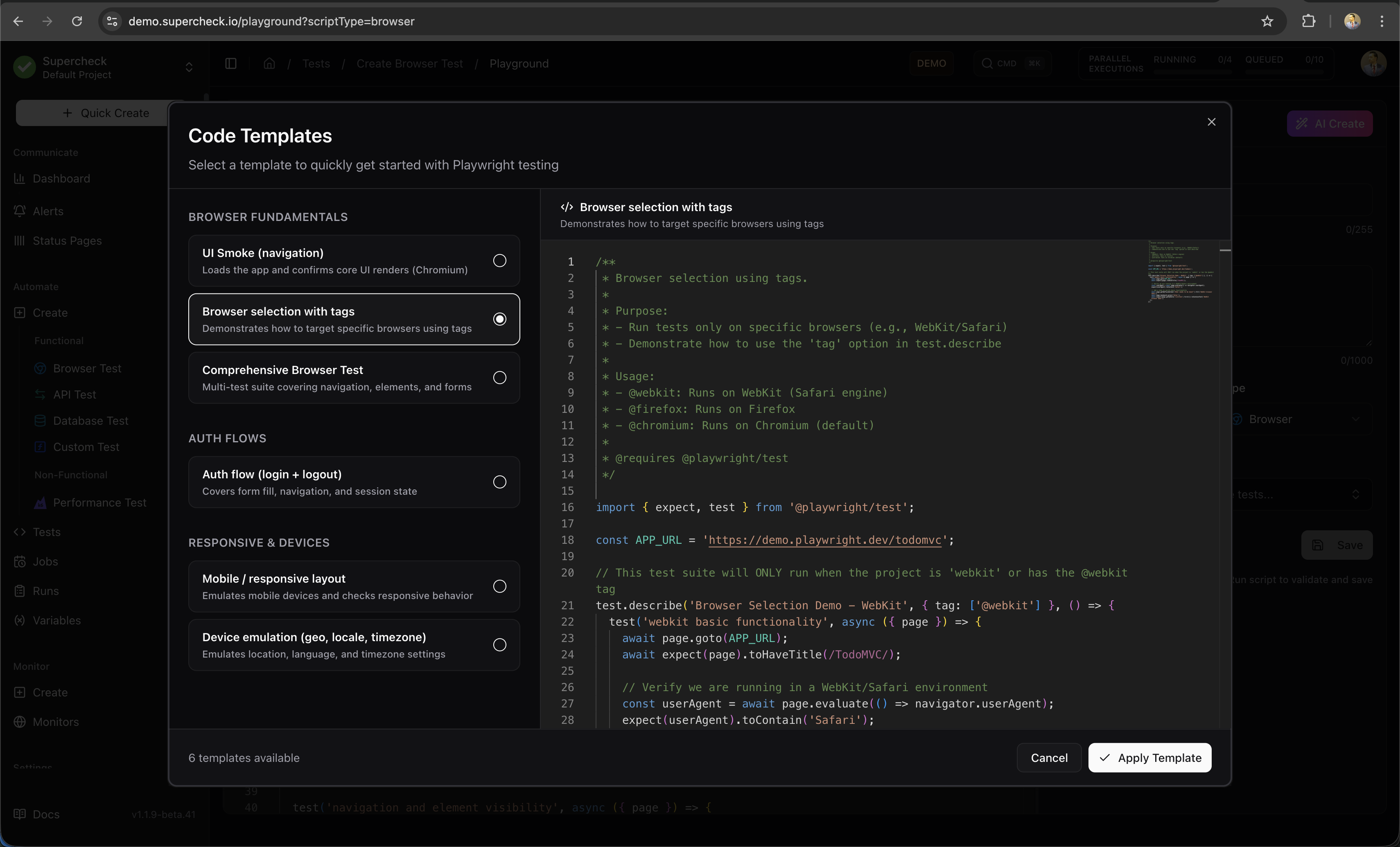
Start with pre-built templates for common testing scenarios. Templates provide working code that you can customize for your application.
Available Templates
| Category | Templates |
|---|---|
| Browser Fundamentals | UI Smoke (navigation), Browser selection with tags, Comprehensive Browser Test |
| Auth Flows | Auth flow (login + logout) |
| Responsive & Devices | Mobile/responsive layout, Device emulation (geo, locale, timezone) |
| Category | Templates |
|---|---|
| API Health | Health/JSON contract |
| API CRUD | Create + read + cleanup |
| Authentication | Authenticated request |
| API Coverage | Comprehensive API Test |
| Category | Templates |
|---|---|
| Database Checks | SELECT health check, Safe UPDATE with RETURNING, Database Discovery & Query |
| Transactions | Insert with rollback |
| Category | Templates |
|---|---|
| Cross-layer | Custom test fixtures, Form with API stubbing, Device emulation showcase, API + UI end-to-end, GitHub API + Browser Integration |
| Category | Templates |
|---|---|
| Smoke & Health | Smoke Check (API), Basic Performance Test |
| Load Profiles | Ramping Load, Advanced Thresholds |
| Resilience | Spike + Recovery, Stress Test, Breakpoint Test |
| Reliability | Soak/Endurance |
| API Coverage | API Checklist (GET + POST + auth), Checks & Assertions |
Using Templates
- Click Templates in the editor toolbar
- Browse categories or search for specific scenarios
- Click a template to preview the code
- Click Use Template to insert into editor
- Customize URLs, selectors, and test data for your app
Test Reports
Every test run generates a detailed report with artifacts for debugging:
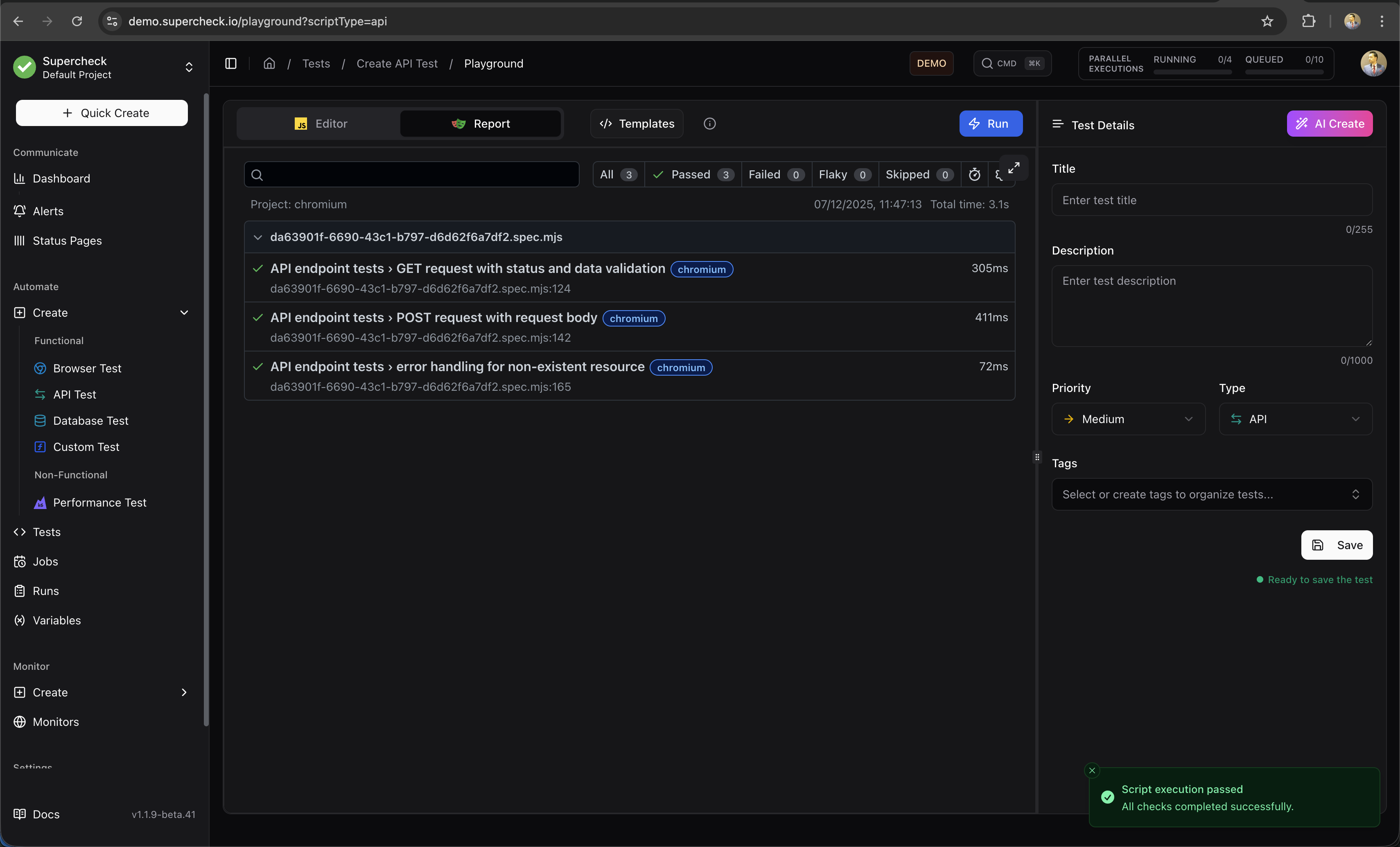
Report Contents
| Artifact | Description | Use For |
|---|---|---|
| Screenshots | Captured at each step and on failure | Visual verification, debugging UI issues |
| Trace | Interactive step-by-step replay | Understanding test flow, timing issues |
| Video | Full browser recording | Seeing exactly what happened |
| Console Logs | Browser console output | JavaScript errors, debug messages |
| Network | All HTTP requests and responses | API debugging, performance analysis |
Viewing Traces
The Playwright Trace Viewer lets you:
- Step through each action in your test
- See the page state before and after each step
- Inspect DOM elements and their properties
- View network requests with timing
- Debug timing and selector issues
Using Variables
Access project-level configuration and secrets in your tests:
/**
 * Variables and secrets for test configuration.
 * Variables are plain text, secrets are encrypted.
 * @see /docs/automate/variables for setup instructions
 */

// Regular variables (logged normally)
const baseUrl = getVariable('BASE_URL');
const timeout = getVariable('TIMEOUT');

// Secrets require .toString() to access the value
const apiKey = getSecret('API_KEY').toString();
const password = getSecret('DB_PASSWORD').toString();

// Using in Playwright
await page.goto(baseUrl);
await page.fill('#password', password);
Variables are resolved server-side before execution. Secrets are encrypted and automatically redacted from logs and screenshots.
See Variables for setup instructions.
Learn More
For deeper understanding of the testing frameworks used in Supercheck:
- Playwright Documentation — Complete guide to browser automation
- Playwright Locators — Best practices for finding elements
- Playwright Assertions — Available assertion methods
- Playwright Trace Viewer — Debugging with traces