Alerts
Multi-channel notifications for failures and recoveriesEdit
Alerts notify you when monitors fail, tests break, or services recover. Configure multiple notification channels and use smart thresholds to avoid alert fatigue.
Notification Providers
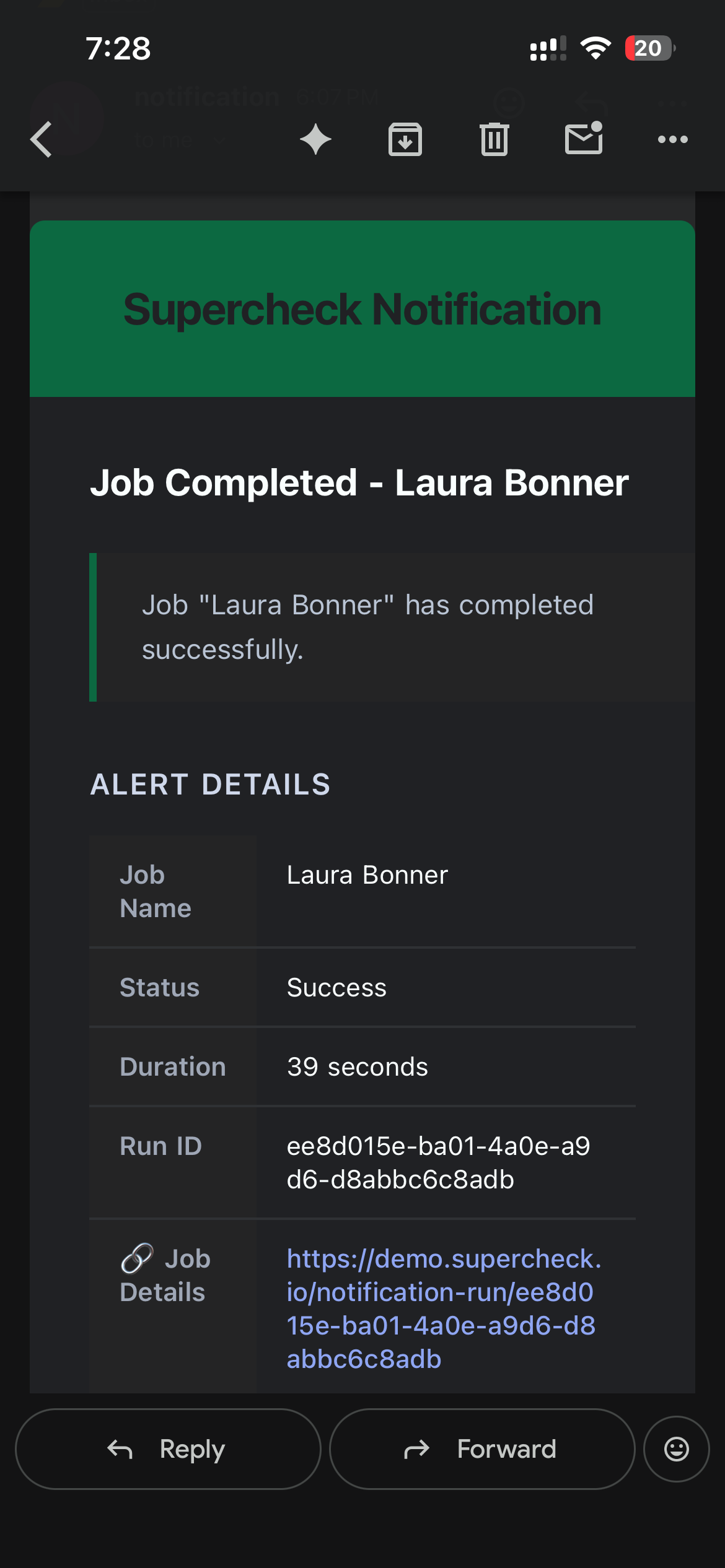
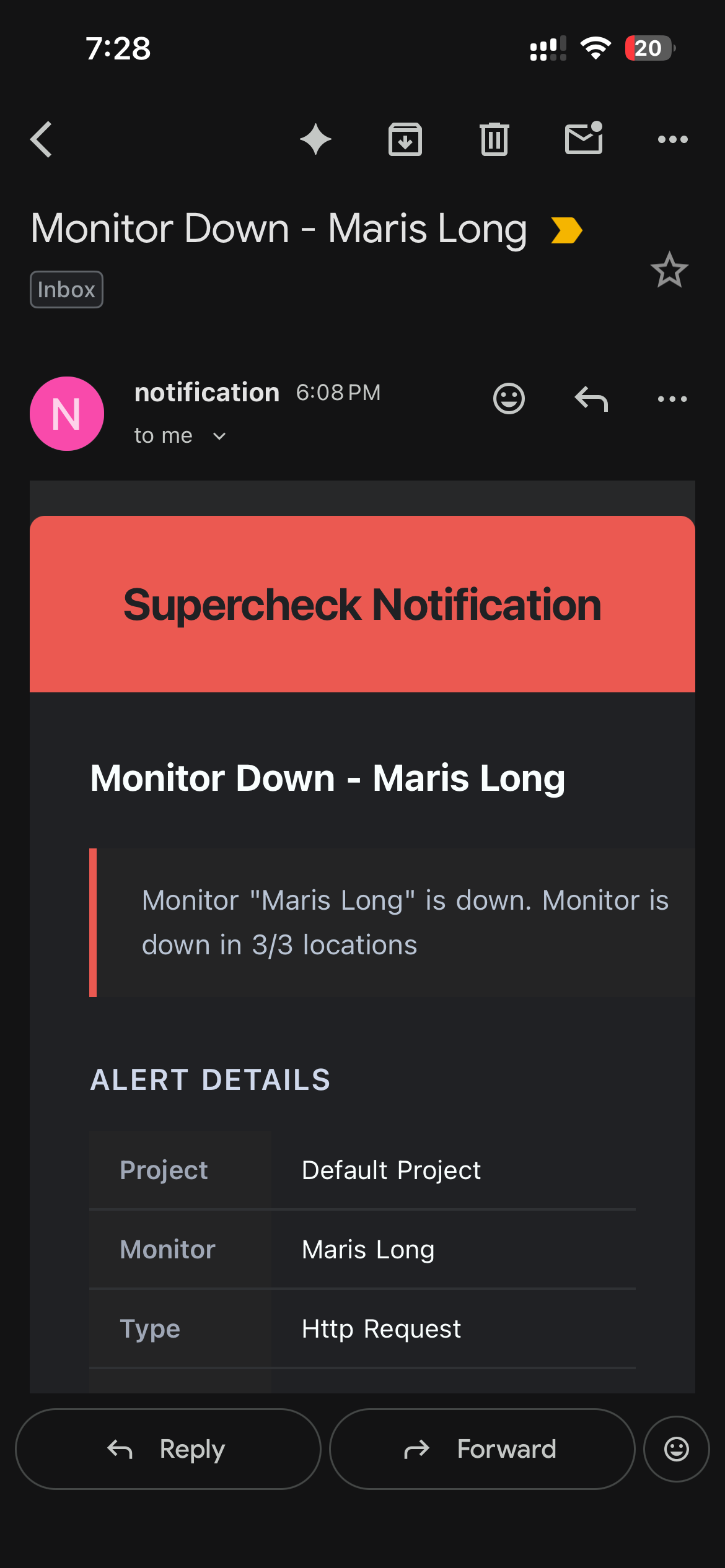
Professional HTML emails via SMTP with detailed status information
Slack
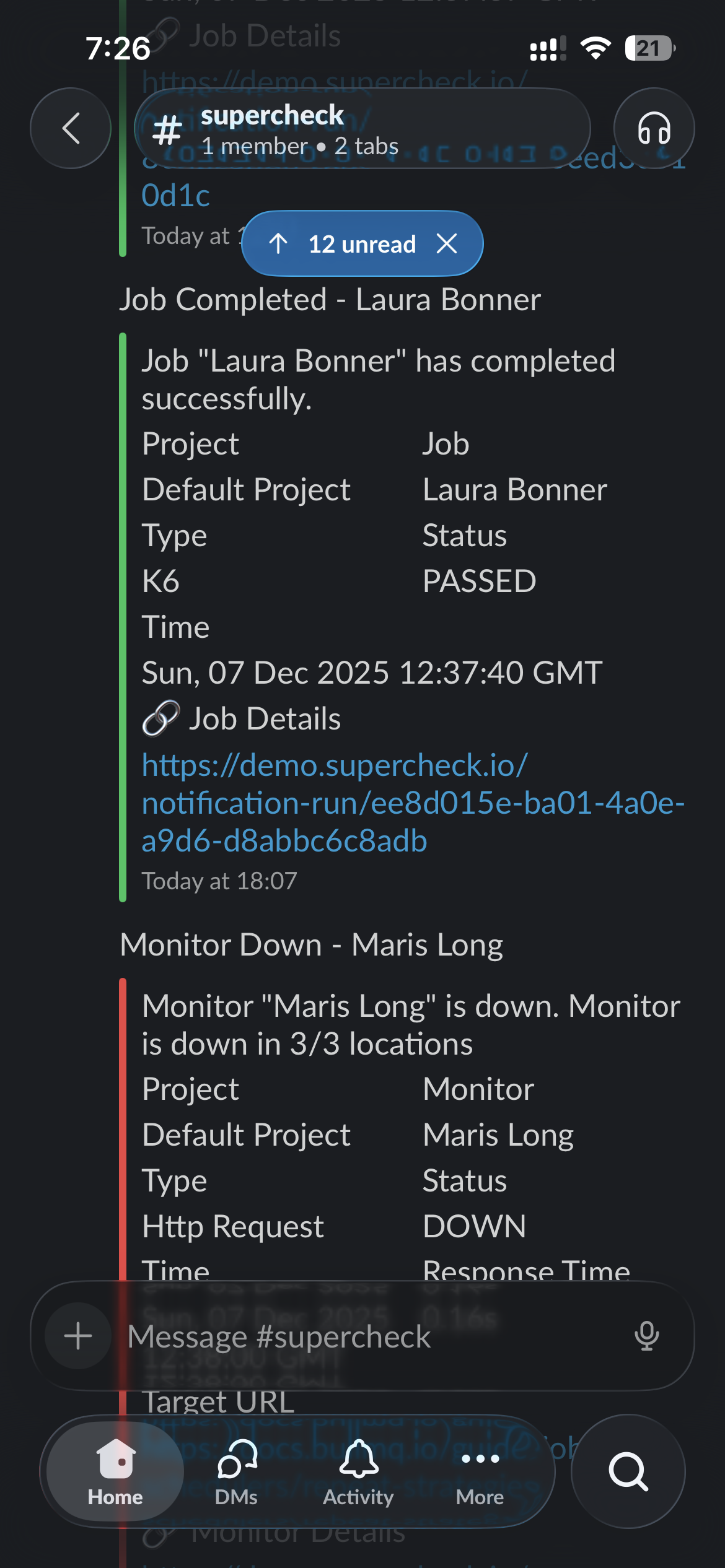
Rich formatted messages to channels or DMs with status badges
Webhook
JSON payloads to any HTTP endpoint for custom integrations
Telegram
Bot messages to chats or groups with Markdown formatting
Discord
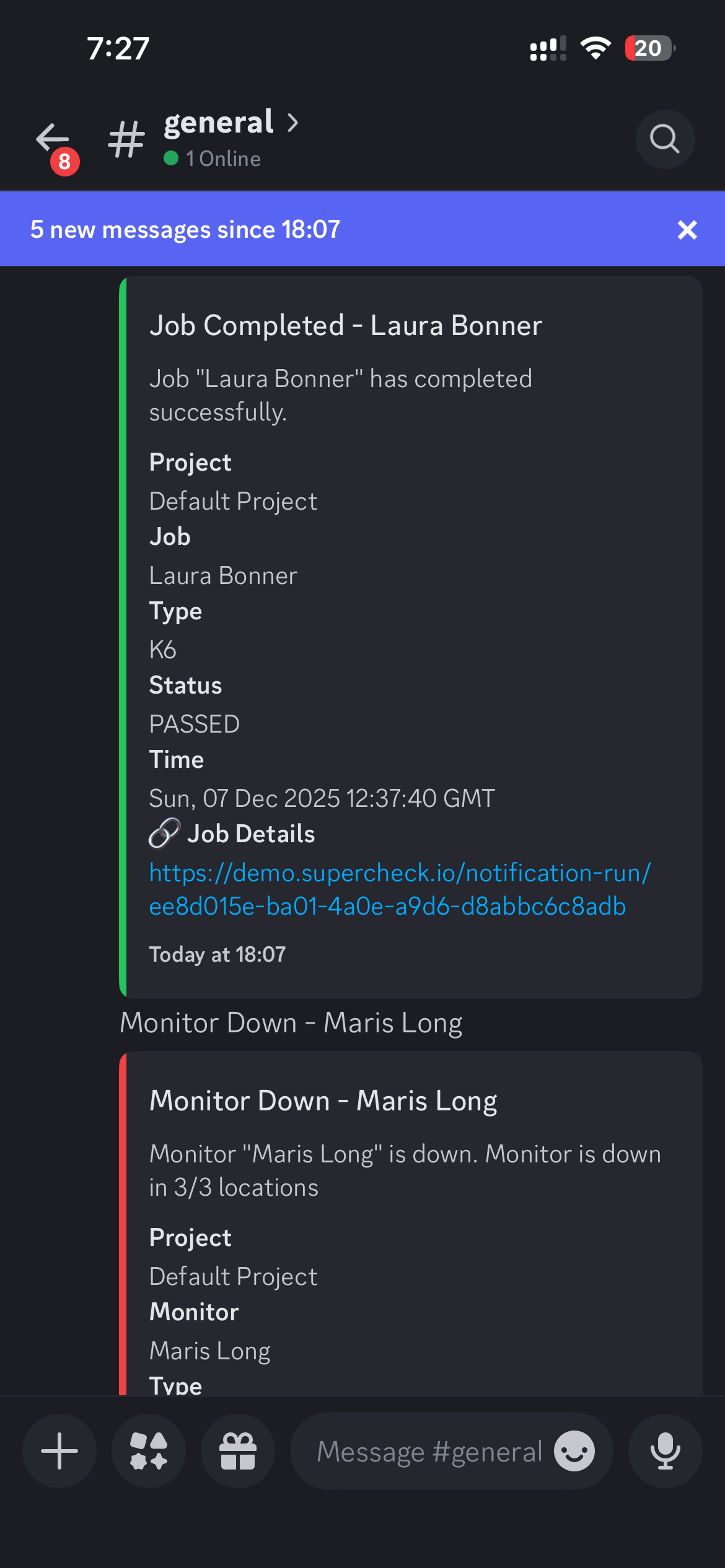
Embedded messages to server channels with color-coded status
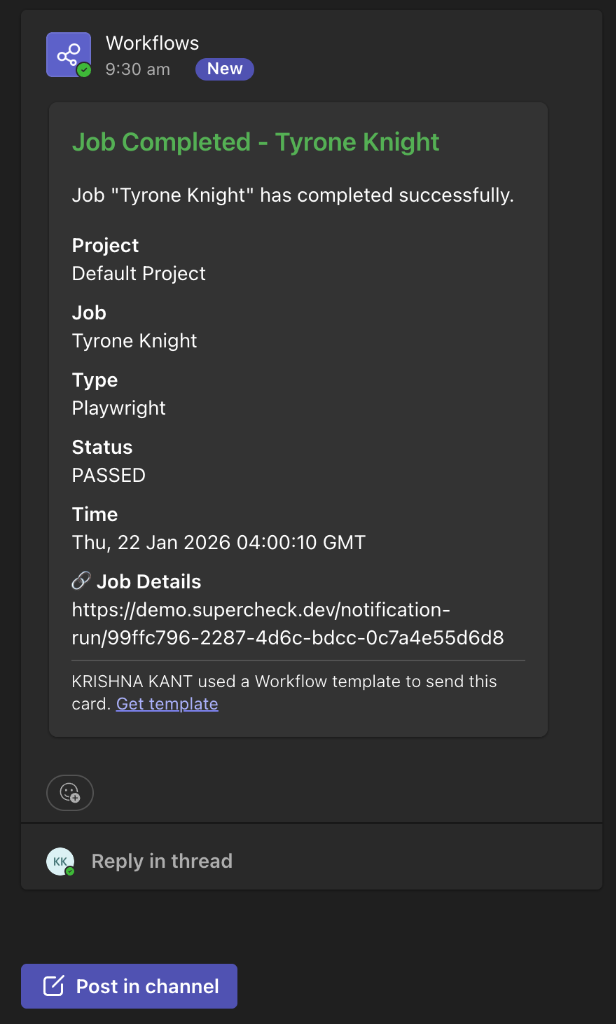
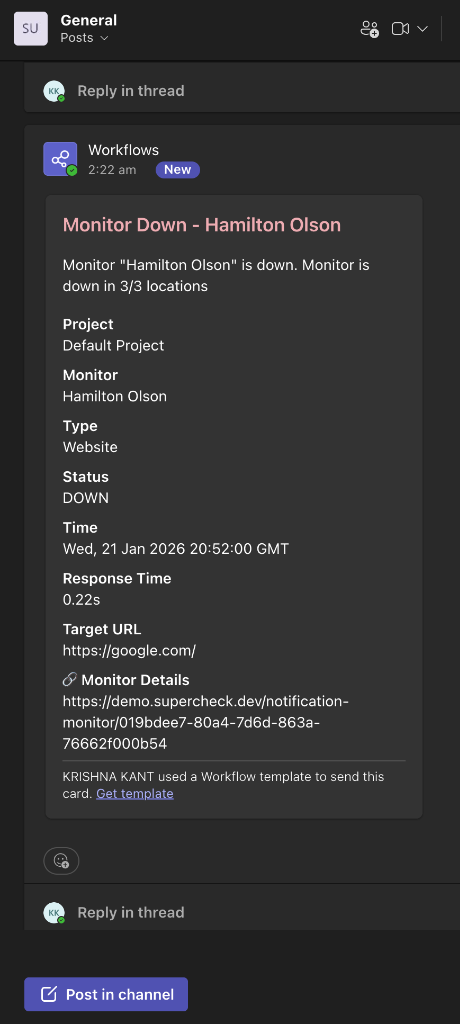
Microsoft Teams
Adaptive Card notifications via Power Automate workflows
Setting Up Providers
- Go to Alerts → Notification Channels
- Click Add Provider
- Select the provider type and enter credentials
- Click Test to verify the connection
- Save the provider
After creating providers, attach them to monitors or jobs in their Alerts settings.
Alert Types
| Alert | Trigger | Severity |
|---|---|---|
| Failure | Consecutive failures reach threshold | Error |
| Recovery | Consecutive successes reach threshold after being down | Success |
| SSL Expiring | Certificate expires within configured days | Warning |
| Alert | Trigger | Severity |
|---|---|---|
| Failure | One or more tests in the job failed | Error |
| Success | All tests passed (optional) | Success |
| Timeout | Job exceeded maximum execution time | Error |
Threshold Configuration
Thresholds prevent alert noise from transient issues like network blips or brief service hiccups.
Failure Threshold
The number of consecutive failures required before sending the first failure alert. This prevents alerts from single network blips.
Recovery Threshold
The number of consecutive successes required before sending a recovery alert. This ensures the service is truly stable before confirming recovery.
Alert Limiting
To prevent notification spam during extended outages:
- Maximum 3 alerts per failure or recovery sequence
- First alert sent when threshold is reached
- Counter resets when status changes (from up→down or down→up)
Configuration: Failure Threshold = 3, Recovery Threshold = 2
| Check | Result | Consecutive Count | Alert Sent |
|---|---|---|---|
| 1 | ❌ Fail | 1 failure | — |
| 2 | ❌ Fail | 2 failures | — |
| 3 | ❌ Fail | 3 failures ✓ | Failure Alert |
| 4 | ❌ Fail | 4 failures | — |
| 5 | ✅ Pass | 1 success | — |
| 6 | ✅ Pass | 2 successes ✓ | Recovery Alert |
Notes:
- Check 3: Failure threshold (3) reached → first failure alert sent
- Check 4: Already alerted, no new alert until exponential interval
- Check 5: Status changed to passing, failure counter resets, recovery counter starts
- Check 6: Recovery threshold (2) reached → recovery alert sent
Provider Configuration
Required environment variables:
SMTP_HOST=smtp.resend.com
SMTP_PORT=587
SMTP_USER=resend
SMTP_PASSWORD=your-api-key
SMTP_FROM_EMAIL=alerts@yourdomain.com
Supported providers: Resend, SendGrid, Mailgun, Amazon SES, Gmail, Office 365
- Go to Slack API and create an Incoming Webhook
- Select the channel to post to
- Copy the webhook URL
- Add the URL in Supercheck
Example: https://hooks.slack.com/services/T00000000/B00000000/XXXX
- In Discord, go to Server Settings → Integrations → Webhooks
- Create a new webhook and select the channel
- Copy the webhook URL
- Add the URL in Supercheck
Example: https://discord.com/api/webhooks/000000000000000000/XXXX
- Create a bot with @BotFather
- Get your bot token
- Get your chat ID (use @userinfobot)
- Add both in Supercheck
Teams uses Power Automate Workflows to receive webhook notifications.
- Go to the Teams channel where you want notifications
- Click ••• → Workflows → Create a workflow
- Choose a template:
- Send webhook alerts to a channel — posts to a Teams channel
- Follow the prompts to select the destination channel
- Copy the generated webhook URL
- Add the URL in Supercheck Notification Channel
Example: https://prod-00.westus.environment.api.powerplatform.com:443/powerautomate/...
Configuration:
- URL: Your endpoint (must accept POST)
- Method: POST, PUT, or PATCH
Payload:
{
  "title": "Monitor Down: API Health",
  "message": "Monitor failed after 3 consecutive failures",
  "fields": [
    { "name": "Status", "value": "Down" },
    { "name": "Response Time", "value": "5.2s" }
  ],
  "color": "#dc2626",
  "timestamp": 1705312200
}
Alert History
Track all alerts from Alerts → History:
- Alert type and severity
- Target (monitor or job name)
- Notification channels used
- Delivery status
- Timestamp
Alert Samples